AlvaStamp Manual

Stamp watermarks, barcodes, Bates numbers, and page metadata onto PDFs in bulk from a saved profile.
AlvaStamp stamps watermarks onto PDF documents in bulk. Typical uses are incoming invoices, confidential marking, legal Bates numbering, archive intake, and mailroom processing. You design a profile once — text, logos, barcodes, Bates numbers, or page metadata — then drop in a folder of PDFs and stamp them all.
All processing happens on your PC. Documents never leave the machine: there is no cloud upload, no online connection required, and no transmission of file contents. Stamping uses a proprietary library written in Rust. On a typical desktop PC a 100-page, 100-megabyte PDF finishes in well under a second.
This manual walks through installation, Community vs Pro, profiles, the editor, watermark types, batch output, barcode data requirements, Settings, and the command line. If something is unclear, contact us.
System requirements
Windows 10, or Windows 11 (recommended). English, Deutsch, Français, and Español are included; the UI follows the system language unless you pick one in Settings.
Installation
Install AlvaStamp from the Microsoft Store. After the Store finishes, launch the app from the Start menu or from the Store listing. Updates are delivered by the Store.
The ? control in the status bar opens this manual in your browser.
Community vs Pro
After install, AlvaStamp runs as the free Community version. Community can stamp text, images, Bates numbers, page metadata, and Code 39 barcodes.
Pro unlocks:
- all linear and 2D barcode types
- profile import and export, so you can share recipes with coworkers
- batch processing from the command line and PowerShell
Pro is a one-time purchase — not a subscription — and includes email support. Click Get Pro in the status bar and follow the Store purchase flow. The status bar shows Pro mode once the license is active.
On first launch in Community, a notice lists the locked features. Dismiss it with Got it; you can unlock later at any time.
Profiles
AlvaStamp opens on the profile gallery. A profile is a named stamp recipe: one or more watermarks, optional Bates numbering, optional PDF document properties, and the output options from the last run.
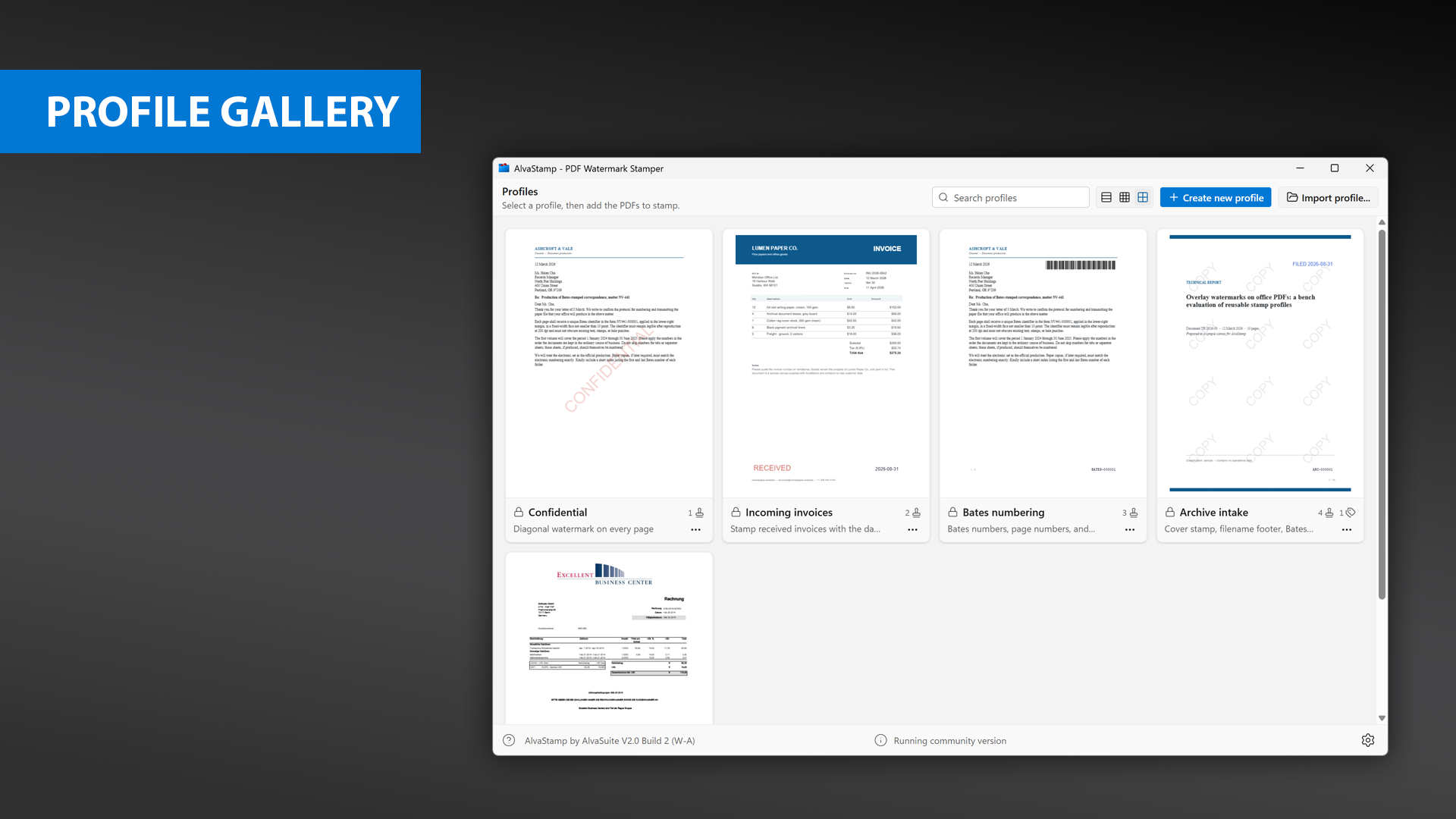
Profile gallery in icon view, with the four preloaded recipes.
Click a profile, then add the PDFs to stamp in the next screen. Search in the gallery with Search profiles. Switch List view, Medium view, or Icon view.
Create new profile opens the editor. Import profile… loads a .alvastamp file (Pro). On each card, clicking the thumbnail (or “…"-menu > Execute) goes to the stamp screen; Edit profile, Duplicate, Export… (Pro), and Delete… are also on the card menu.
Four preloaded profiles ship with the app:
- Confidential — a diagonal watermark on every page
- Incoming invoices — received-date stamp
- Bates numbering — Bates numbers, page numbers, and a Code 39 barcode
- Archive intake — tiled cover stamp, filename footer, Bates series, and page labels
Built-in profiles cannot be edited or deleted. Choose Duplicate and edit to make your own copy, or hide them under Settings → Show preloaded profiles.
Typical workflow:
- Pick (or create) a profile.
- Add the PDFs to stamp.
- Preview the result, then Stamp….
Profile editor
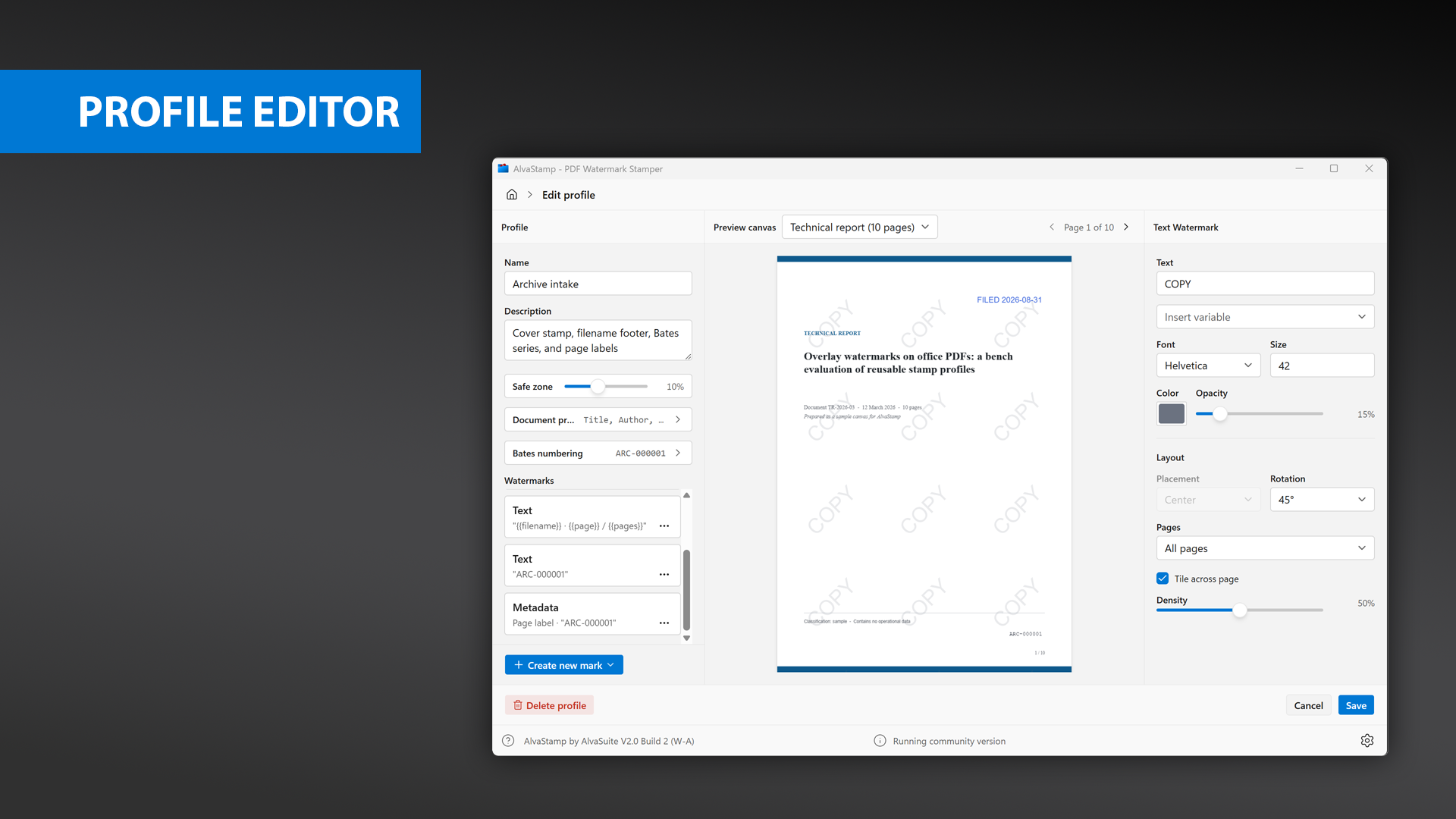
Profile editor: watermarks on the left, live page preview in the center, inspector on the right.
The window is three columns:
- Profile and watermarks — Name, Description, and Safe zone (0–25%, default 10%). Collapsible Document properties and Bates numbering. The watermark list; Create new mark adds Text, Barcode, Image, Bates number, or Metadata.
- Preview — choose Blank, Transparency grid, Invoice (1 page), Letter (2 pages), Technical report (10 pages), or Load… one of your own PDFs. Step pages with the arrows. Paper size for blank/grid preview is A4 or US Letter in Settings.
- Inspector — options for the selected watermark. If nothing is selected, the pane reads Select a watermark to edit.
Save writes the profile. Cancel or the Home breadcrumb returns to the gallery without saving. Right-click a watermark for Duplicate and Delete….
Watermark types
Text
Text Watermark. Type the line, or use Insert variable to drop in a {{token}}. Font is Helvetica, Times-Roman, or Courier; Size is 6–144 pt. Set Color and Opacity (new text defaults to 35%). Then configure Layout.
Image
Image Watermark. Drop a file, or Open image…. PNG, JPEG, SVG, and PDF artwork are accepted. Files of 100 KB or less are Embedded in the profile (they travel with Export…). Larger files are Linked to a path on disk; if that file is moved or deleted, the mark shows ?. Size scales the image from 10% to 400%.
Barcode
Barcode Watermark. Enter Data (plain text or variables) and pick a Symbology. Community can use Code 39 only; other types show a PRO pill until you unlock. Linear codes have Module width, Module height, Show human readable, Font size, and Margin. 2D codes have Module size and Margin. See Barcode types for the data each symbology accepts.
If the data cannot be encoded, the preview reports an error and points here for the rules.
Bates number
Bates number creates a text watermark whose default content is {{bates_full}} (Courier, bottom right). It is not a separate engine type: every mark that uses Bates variables shares one series, configured under Bates numbering.
Metadata
Page metadata writes a string into the PDF instead of painting on the page. Placement is Page label or /PieceInfo. For PieceInfo, set Name (letters, digits, ., _, -; default AlvaStamp). Only the Pages rule applies — there is no placement grid, rotation, or tiling. Viewers show page labels in the page-number box; /PieceInfo is private application data and needs a PDF library to read back — see Reading page labels and /PieceInfo from AlvaStamp PDFs for Python and Node scripts.
Layout
Painted marks (text, image, barcode) share a Layout section:
- Placement — nine positions: top / middle / bottom × left / center / right
- Rotation — 0° to 345° in 15° steps
- Pages — All pages, Only first page, Only last page, Exclude first page, Exclude last page, Odd pages only, Even pages only, or Every Nth page (
Nfrom 2 to 99) - Tile across page — repeats the mark; Placement is disabled while tiling is on. Density (0–100%) controls spacing
Safe zone on the profile insets edge placements from the page border, as a percentage of page size.
Variables
Insert {{name}} tokens from Insert variable. Names are case-insensitive; unknown tokens are left as written.
| Token | Meaning |
|---|---|
{{date}} | Date, YYYY-MM-DD |
{{time}} | Time, HH:MM (24-hour, local) |
{{datetime}} | Date and time, YYYY-MM-DD HH:MM |
{{filename}} | PDF file name |
{{folder}} | Parent folder name |
{{page}} | Current page number (1-based) |
{{pages}} | Page count |
{{username}} | Windows user name |
{{computer}} | Computer name |
{{document_title}} | PDF title, or the file stem if the title is empty |
{{bates_full}} | Full Bates string (prefix + counter + suffix) |
{{bates_counter}} | Zero-padded Bates counter only |
Document properties also accept {{bates_first}} and {{bates_last}} (the first and last Bates values assigned to that file). Page-level tokens such as {{page}} are omitted from that picker.
Bates numbering
When any watermark or document field uses a Bates token, the editor shows Bates numbering:
- Prefix and Suffix — static text around the counter
- Digits — 3–12, default 6
- Number — where this job starts
- Continue numbering from the last run — keeps a multi-day series in order
- Across documents — One sequence for the whole job, or Restart at each file
The printed form is prefix + zero-padded counter + suffix, for example ARC-000001. Every watermark that uses Bates variables shares this series. A range preview shows the first and last numbers this job will assign.
Document properties
Document properties writes PDF Info fields. Leave a field empty to keep what is already in the PDF.
- Title, with optional Use the source filename as the title
- Author, Subject, Keywords
Variables from the document list can be inserted into these fields.
Stamp documents
From the gallery, Stamp with this profile opens the stamp screen.
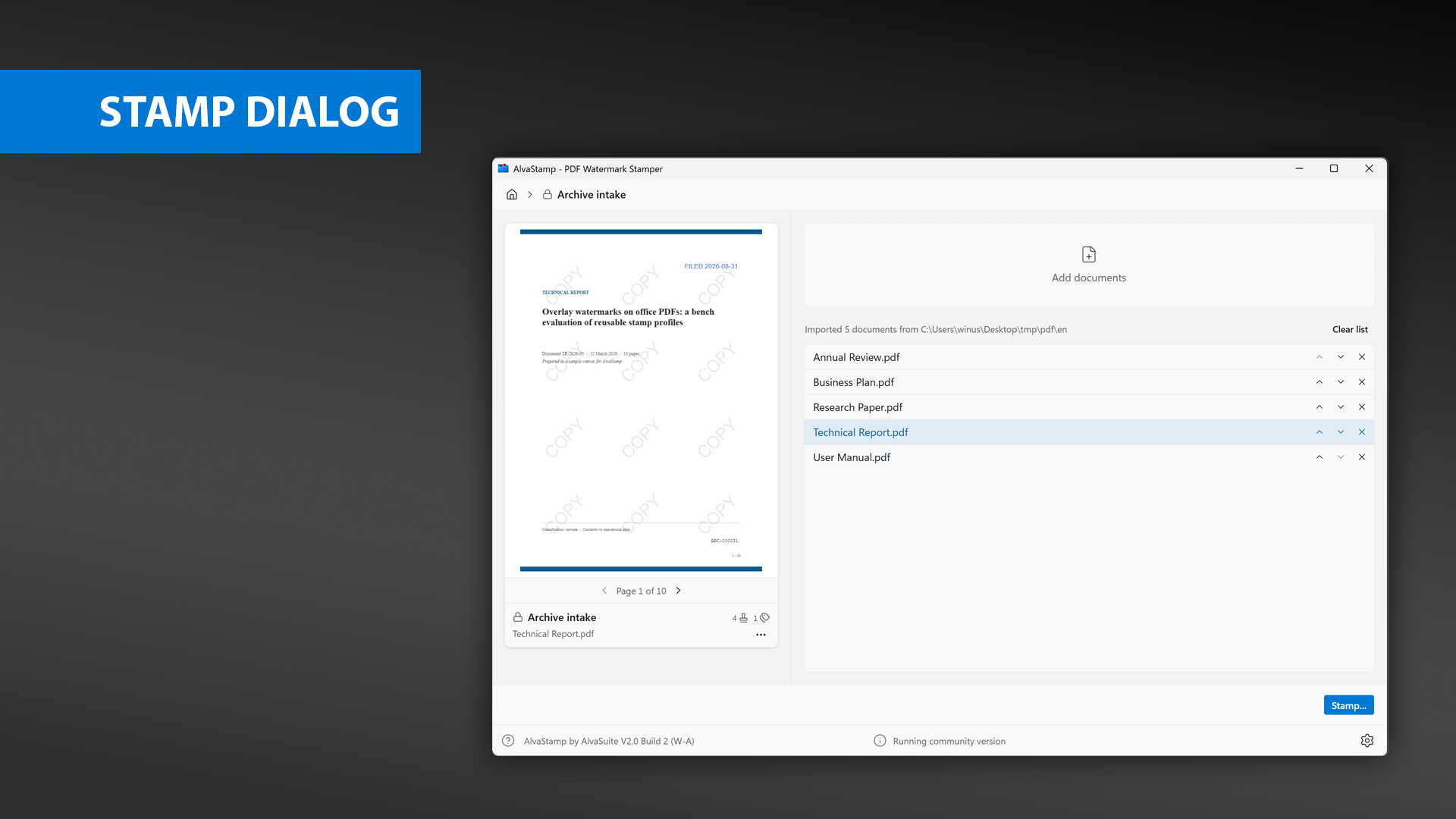
Stamp screen: live preview on the left, document list on the right.
Add documents (or drop files or a folder) builds the batch. Clear list removes everything. Click a row to preview that PDF with the profile applied; step pages under the preview. Reorder with the arrows, or remove a file with ×.
Password-protected and owner-locked PDFs show a Read-only badge: This PDF is read-only or password-protected and cannot be stamped. They stay in the list so you can see them; stamping those files fails, and the rest of a mixed batch can still finish.
Click Stamp… when the list looks right.
Output
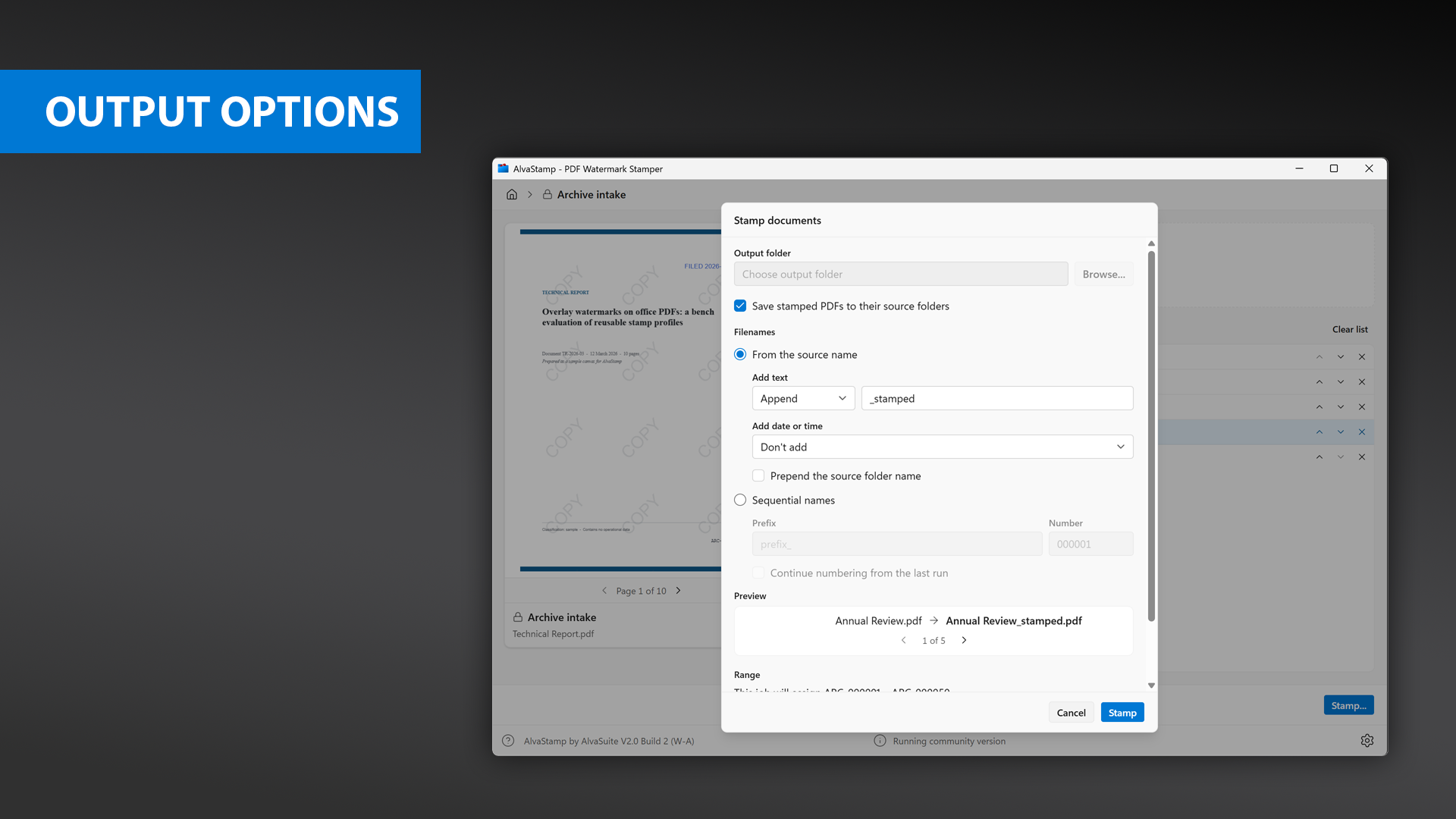
Stamp documents dialog: destination folder, filename pattern, and clash handling.
The Stamp documents dialog remembers the last choices on the profile.
Output folder — Browse… to a dedicated folder, or tick Save stamped PDFs to their source folders. If the computed names would overwrite the originals, AlvaStamp warns you first.
Filenames:
- From the source name — Add text (Don’t add / Prepend / Append, default
_stamped); Add date or time (Don’t add / Date / Time / Date and time); optional Prepend the source folder name - Sequential names — Prefix, Number, and Continue numbering from the last run
A Preview line shows the resulting name for each file in the batch.
Name clashes — Ask, Overwrite, Skip, or Rename (add _0001, _0002, …) (default). Skip here is for name collisions, not for read-only PDFs.
Click Stamp to run. Progress is Stamping {done} of {total}…. When Bates tokens are in use, a Range line shows the series this job will write.
Barcode types
AlvaStamp encodes nine symbologies. Code 39 is available in Community; the others require Pro. Retail codes (EAN, UPC, ISBN, ISSN), Codabar, ITF-14, and similar types are not in AlvaStamp — use AlvaBars to generate those as files.
If the data in a watermark does not match the selected type, the preview reports an error. Empty data cannot be encoded. You can mix barcode data with variables, for example {{bates_full}} or {{filename}}.
Linear codes use Module width, Module height, optional Show human readable, Font size, and Margin. 2D codes use Module size (square) and Margin. Barcodes always stamp at full opacity.
Code 39 / Code 39 Extended
Community.
- Data: digits and letters, up to 64 characters
- Settings: module width, module height, human-readable text, font size, margin
- Code 39 vs Code 39 Extended is selected automatically from the data
Code 128
Pro.
- Data: digits, letters, and ASCII, up to 64 characters
- Settings: module width, module height, human-readable text, font size, margin
- Subset A, B, or C is selected automatically. A check digit is always included.
Code 128 GS1
Pro.
- Data: digits, letters, and parenthesized application identifiers, up to 64 characters, for example
(01)1234567890. See the GS1 application identifiers table. - Settings: module width, module height, human-readable text, font size, margin
- Subset A, B, or C is selected automatically. A check digit is always included. Required FNC1 symbols are inserted for you.
Interleaved 2 of 5
Pro.
- Data: digits 0–9, up to 64 digits. An odd number of digits is padded with a leading
0 - Settings: module width, module height, human-readable text, font size, margin
Data Matrix
Pro.
- Data: up to 2000 characters, extended ASCII
- Settings: module size (square), margin
Data Matrix GS1
Pro.
- Data: up to 2000 characters, extended ASCII, including application identifiers, for example
(01)1234567890. See the GS1 application identifiers table. - Settings: module size (square), margin
- Required FNC1 symbols are inserted for you.
PDF417
Pro.
- Data: up to 2000 characters, extended ASCII
- Settings: module size, margin
- Module ratio height : width is 3 : 1
QR Code
Pro.
- Data: up to 2000 characters, Unicode
- Settings: module size (square), margin
Aztec
Pro.
- Data: up to 2000 characters, extended ASCII
- Settings: module size (square), margin
Settings
Click the gear in the status bar to open Settings:
- Show preloaded profiles
- Preview paper size — A4 or US Letter
- Language — System, English, Deutsch, Français, or Español
Right-click the gear for Reset all settings. That restores language, preview paper, and the preloaded-profile switch to their defaults. Your profiles are left as they are.
Command line
Headless stamping is a Pro feature. Opening a .alvastamp file without --stamp still launches the app on that profile in Community.
AlvaStamp --stamp "C:\jobs\archive.alvastamp" --list "C:\jobs\files.txt" -o "C:\out"
| Option | Meaning |
|---|---|
--stamp, --headless | Run without the UI |
-p, --profile <file> | Profile document (.alvastamp) |
-l, --list <file> | Text file with one PDF path per line |
-o, --output <folder> | Override the profile output folder |
-d, --debug | Print per-file diagnostics |
-h, --help | Show help |
-V, --version | Show version |
The list file may include blank lines and # comments. Relative paths are resolved from the list file’s folder. A folder path includes the PDFs in that folder.
Dark mode
AlvaStamp follows the Windows colour scheme. There is no separate in-app theme switch — if Windows is in dark mode, the app is too. Stamped content (text colour, barcodes, images) is unchanged by the UI theme.