AlvaLabel Manual

Design and print labels at real size on Avery, Zweckform, HERMA, and TownStix sheets, with live printer margins and catalog merge.
AlvaLabel is a desktop label designer for the computer that owns the printer. Pick a sheet from Avery, Avery Zweckform, HERMA, or TownStix, compose the label at real size, merge a catalog from Excel or CSV, and preview the full sheet before anything hits paper. Designs, product data, and printer settings stay on the machine — nothing is uploaded.
This manual covers installation, Community vs Pro, the three screens of the app (home, designer, print), every object type in the designer, data sources, sequential numbers, barcodes, and settings. Two notes go deeper on how the catalog maps dies to SKUs and how printer margins are read from Windows. If something is unclear, contact us.
System requirements
Windows 10, or Windows 11 (recommended).
macOS 13 Ventura or later.
English, Deutsch, Français, and Español are included; the UI follows the system language unless you pick one in Settings (Preferences on Mac).
Installation
On Windows, install AlvaLabel from the Microsoft Store. After the Store finishes, launch the app from the Start menu or from the Store listing. Updates are delivered by the Store.
On Mac, AlvaLabel will be available from the Mac App Store. Launch it from Applications or Launchpad; updates will come from the App Store.
The ? control in the status bar opens this manual in your browser. The gear at the right end of the status bar opens Settings (Preferences on Mac).
Community vs Pro
After install, AlvaLabel runs as the free Community version. Community can design and print labels with text, shapes, images, sequential numbers, catalog fields, and Code 39 barcodes.
Pro unlocks:
- all linear and 2D barcode types
- your own saved templates (Save as new template)
- design export for sharing with coworkers (Export…)
Pro is a one-time purchase — not a subscription — and includes email support. Click Get Pro in the status bar and follow the Store purchase flow. On Mac you can also Restore Purchases from the AlvaLabel menu if you already bought Pro on this Apple Account. The status bar shows Pro mode once the license is active.
On first launch in Community, a notice lists the locked features. Dismiss it with Got it; you can unlock later at any time.
A design that contains a Pro barcode can still be opened and edited in Community, but the print screen reports This label uses a Pro barcode. and the Print button stays disabled.
How the app is organised
AlvaLabel has three screens, and the breadcrumb bar at the top always shows where you are:
- Home — three tabs on the left rail: Recents, Templates, and New label. This is where a job starts.
- Designer — the label editor: design panel on the left, tool rail and canvas in the middle, inspector on the right.
- Print — the full-sheet print job: quantity, fill order, first unused label, and a preview of the actual sheet.
You reach the designer by creating a new label or opening a template, and the print screen from either the designer or straight from a card in Recents.
Home screen
Recents
Recents lists every label you have saved, most recently saved first. Each card shows the label name and either your description or, if you left it empty, the stock number and label size. Recents is the tab AlvaLabel opens on.
Clicking a card goes straight to the print screen — the common case is reprinting something you already designed. To change the design first, use the actions menu on the card (click it, or right-click the card):
| Action | Effect | |
|---|---|---|
| Open the print screen | ||
| Edit | Open the design in the designer | |
| Duplicate | Add a copy named Copy of … | |
| Export… | Write an .alvalabel file (Pro) | |
| Delete… | Remove the label after a confirmation |
The three buttons at the top right switch card density: List, Medium icons, and Large icons. The choice is remembered. The search box filters on name and description; every word you type has to appear somewhere in one of them.
Templates
Templates is a gallery of ready-made designs. Clicking one opens it in the designer as a new label, so the template itself is never modified by accident.
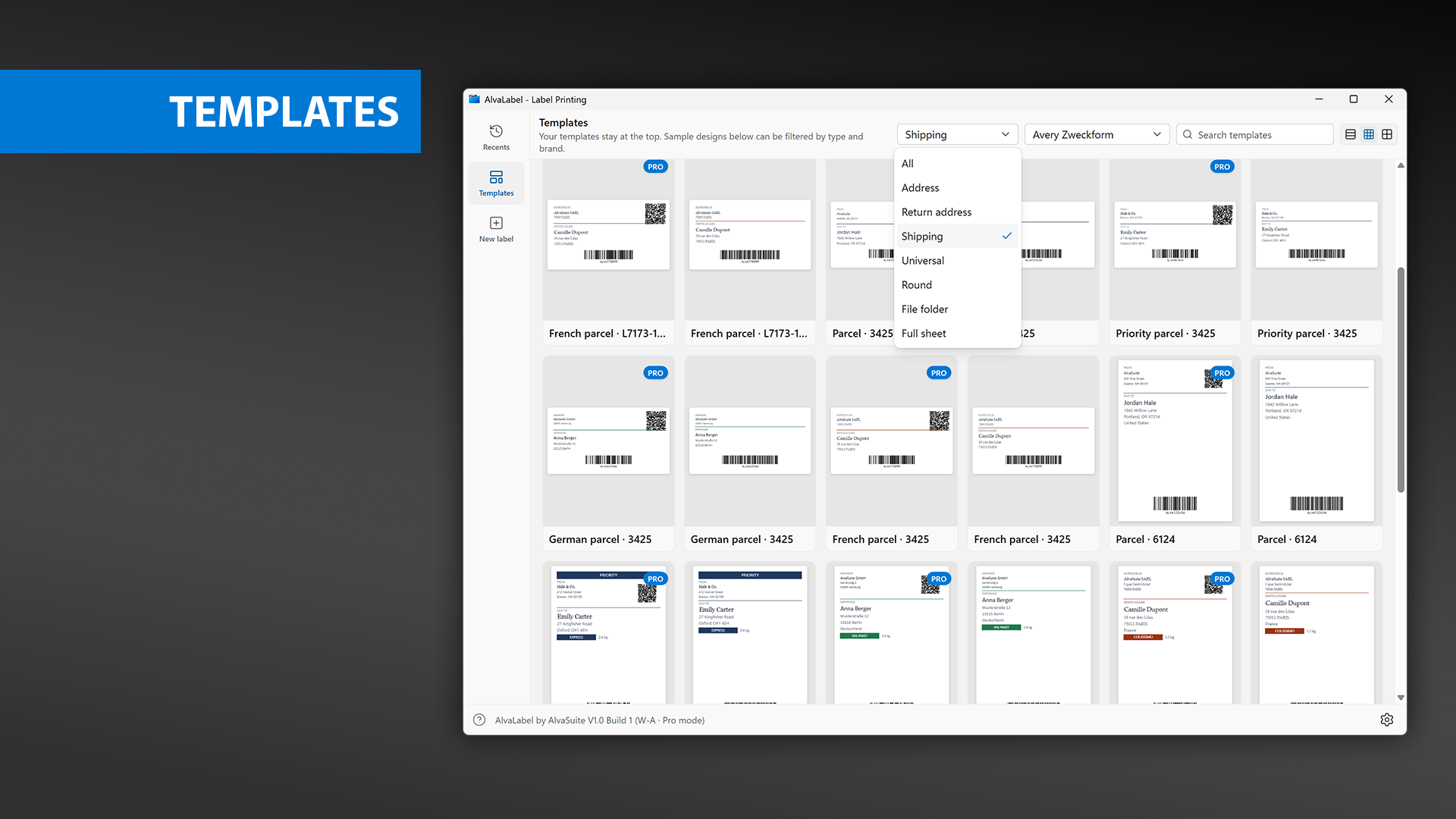
Templates: sample designs filtered by label type and brand. The Pro pill marks designs whose barcode needs a Pro license.
Your own saved designs appear first under Your templates, newest first, each with a button to remove it. Below that, Sample templates ships with the app. Two dropdowns narrow the samples down:
- Label type — All, Address, Return address, Shipping, Universal, Round, File folder, Full sheet
- Brand — one entry per brand you have enabled in Settings
Samples cover address layouts (classic, centered, name-and-rule, German, French), shipping labels (parcel, priority, German, French), universal designs (serial barcode, serial numbers, product, visitor badges in four languages), round lid labels, and file-folder spines, each generated for the stocks that fit. A Pro pill on the thumbnail means the design uses a barcode type that needs a license — you can still open and edit it, but not print it in Community.
New label
New label is the label stock picker. Choose the sheet you are going to put in the printer, choose the printer, then click Create.
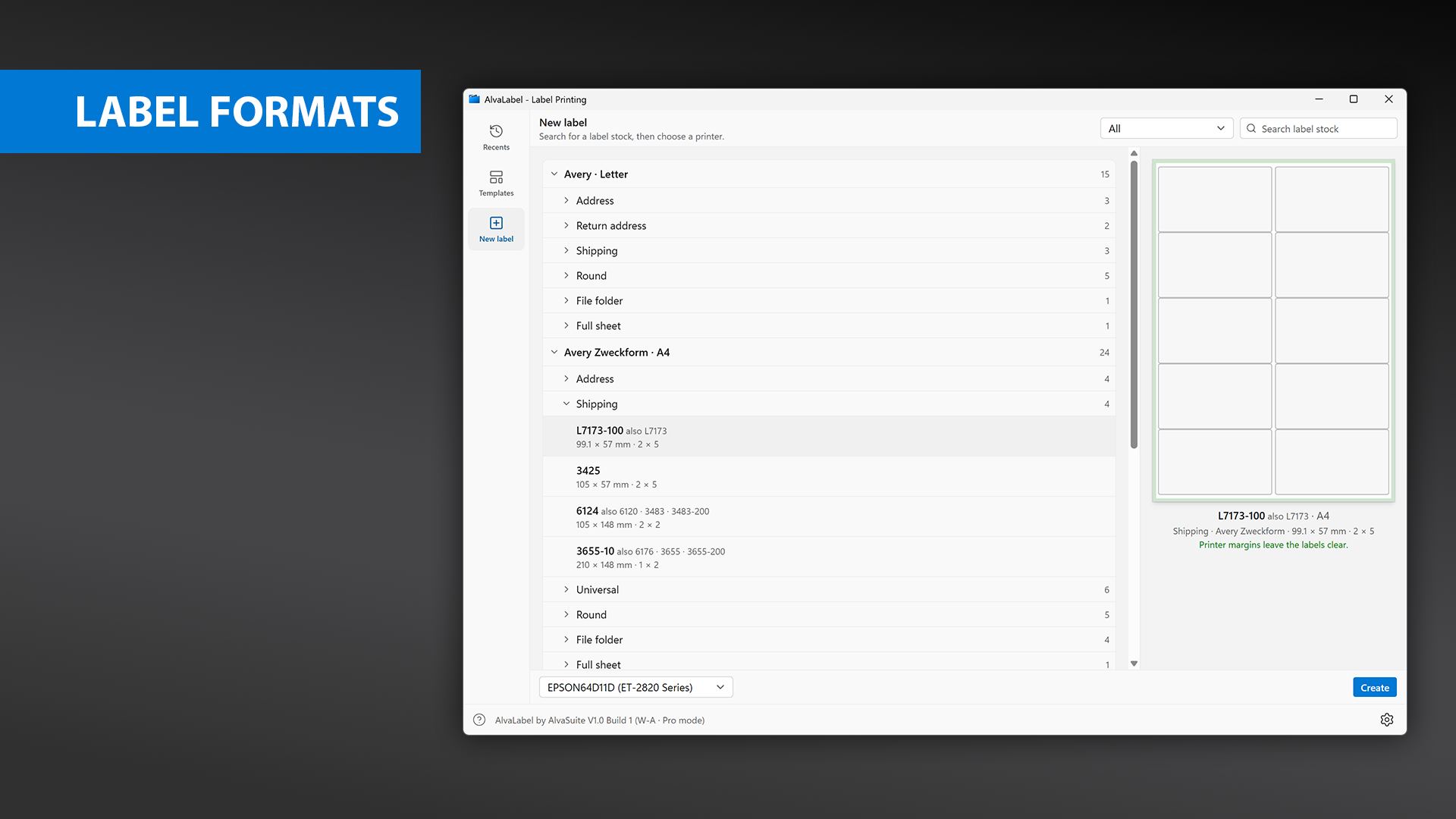
New label: the stock tree grouped by brand and label type, with the full-sheet preview and the printer margin verdict on the right.
The tree is grouped by brand, then by label type. Each row shows the stock number, any alternate pack numbers after also, and underneath the label size and the grid — for example 99.1 × 57 mm · 2 × 5. The catalog holds 82 formats:
| Brand | Sheet | Formats |
|---|---|---|
| Avery | US Letter | 15 |
| Avery Zweckform | A4 | 24 |
| HERMA | A4 | 27 |
| TownStix | A4 | 16 |
Many dies are sold under several pack numbers for the same physical layout — Avery 5160 is also 8160, 5260, and 8460; Zweckform 7160-10 is also L7160, L7160-40, L7160-100, and L7160-250. AlvaLabel lists one canonical entry and keeps the rest as aliases, so the number printed on the box you actually bought still finds the right sheet. Search matches stock numbers, aliases, brand, label type, size, and grid, so 3 x 10 or 63.5 will also get you there. Use the Label type dropdown to show only one category, and the
search box to filter.
Brands you never use can be hidden: switch them off under Label brands in Settings and they disappear from this tree and from the template gallery.
Printer margins
Every printer has a hardware margin it physically cannot print into. When you select a stock and a printer, AlvaLabel asks the printer driver for that printer’s printable area on the chosen sheet size and compares it with the stock’s own margins. The preview on the right is shaded accordingly:
- green, with Printer margins leave the labels clear. — the whole grid sits inside the printable area
- red, with Printer margins would cut off labels. The designer will indicate the safe area on your label. — at least one label runs into the unprintable band
A red verdict is not a dead end. You can still design and print; the designer marks the affected strip on the label itself so you can keep content out of it. See the safe area below.
The designer
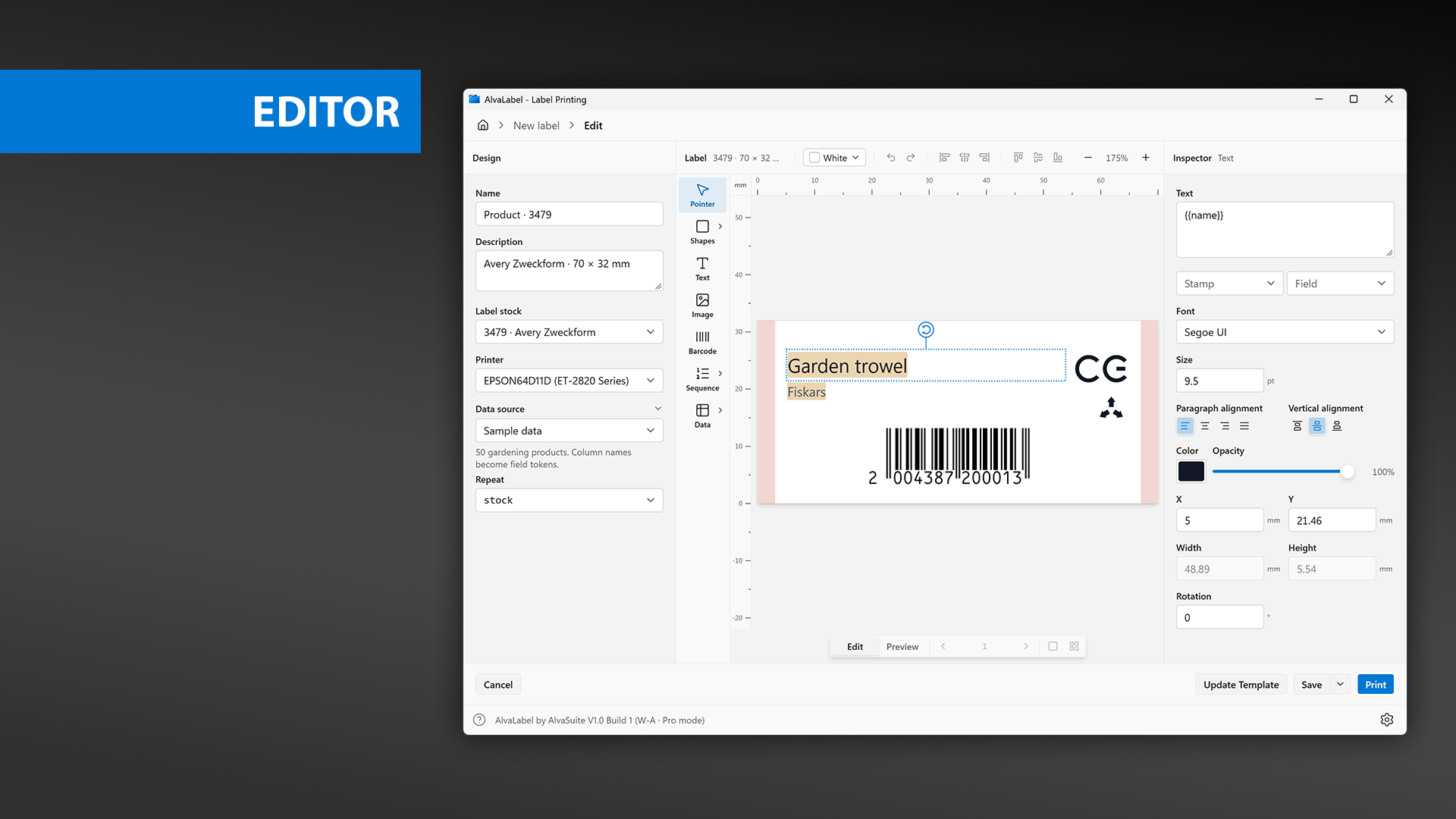
The designer: design panel on the left, tool rail and canvas in the middle, inspector on the right.
Design panel
The left panel holds the properties of the label as a whole:
- Name — required before you can save. It is also available on the label as the
{{name}}stamp. - Description — optional; shown under the name in Recents.
- Label stock — the sheet. Changing it re-sizes the canvas; objects are kept but clamped into the new label.
- Printer — the printer this design is meant for. It drives the safe-area overlay and is pre-selected on the print screen.
- Data source — collapsible; see data sources. When a data source has columns, a Repeat dropdown appears under it.
- Sequential numbers — collapsible; appears only once something on the label uses a sequence token. See sequential numbers.
Canvas bar
Above the canvas, from left to right: the stock number and label size, the paper colour, Undo and Redo, the alignment buttons, and the zoom controls.
Paper colour — White, Gray, Yellow, or Kraft — sets the background of the label on the canvas so you can judge how your text and barcodes will read on coloured stock. It is also laid down as a background when the label is printed, so leave it on White for ordinary stock; pick one of the others only when you want that colour actually printed, or set it to match the stock and keep your artwork away from full-bleed backgrounds.
The alignment buttons need two or more objects selected and move them to line up on a shared edge or centre line. Horizontally: Align left, Align centre, Align right. Vertically: Align top, Align middle, Align bottom.
Zoom runs from 10% to 800% in fixed steps. and step through them; clicking the percentage in between is Fit, which scales the label to the available space. While the view is fitted there are no scrollbars; once you zoom past the fit, scroll to pan.
The rulers along the top and left are in millimetres or inches, depending on the Measurement units setting. The origin is the lower-left corner of the label, and Y increases upward — the same convention the inspector uses. A crosshair on both rulers follows the mouse.
Tool rail
The rail to the left of the canvas selects what the next click on the label creates.
| Tool | What it does | |
|---|---|---|
| Pointer | Select and move objects | |
| Shapes | Draw a rectangle, circle, ellipse, or line | |
| Text | Place text | |
| Image | Place an image | |
| Barcode | Place a barcode | |
| Sequence | Place a sequential number as text or a barcode | |
| Data | Place a data field as text or a barcode |
Shapes, Sequence, and Data carry a submenu — click the chevron to choose which shape, or whether the sequence or field goes down as text or as a barcode. The button’s icon changes to whatever you picked, so , , or in place of . The Data tool stays greyed out with the tip Select a data source first. until the design has a data source, and its submenu then lists the available columns.
After placing an object the tool returns to Pointer, except for Text, Sequence, and Data, which stay active so you can place several in a row.
Working on the canvas
Creating. With a tool selected, either click the label to drop the object at its default size, or drag out a frame. Text created by clicking sizes itself to its content; text dragged out gets a fixed frame that wraps. Images open a file picker after the click or drag, and barcodes take their size from the encoded symbol regardless of how you place them.
Selecting. Click an object to select it, Shift-click to add or remove one, or drag on empty label space to sweep up everything the rubber band touches (hold Shift to add to what is already selected). Clicking empty space clears the selection.
Moving and resizing. Drag anything selected to move it. A selected object shows eight square handles — corners and edge midpoints — and a round handle above the top edge for rotation. Lines have handles at each end only. Objects are always kept inside the label.
Two kinds of object are size-locked and show a dashed outline with no resize handles: barcodes, whose size is determined by the symbology and module settings, and text containing {{…}} tokens, which has to re-fit whenever the merged value changes. You can still move and rotate both.
Modifier keys. Hold Shift while rotating to snap to 15° steps, while resizing a multiple selection to keep its aspect ratio, and while drawing a line to snap it to 45°.
Editing text. Double-click a text object to edit in place. Enter inserts a line break; Esc finishes editing.
Stacking and clipboard. Right-click an object for the context menu. Objects are drawn in the order they were created, and the first four items move the selection through that stack: Bring to front, Bring forward, Send backward, and Send to back. Below those are Copy, Paste, and Delete.
Each paste lands 2 mm below and right of the last one, so repeated pastes fan out instead of stacking invisibly.
Keyboard shortcuts
Modifier shortcuts use Ctrl on Windows and ⌘ on Mac.
| Keys | Effect |
|---|---|
| Arrow keys | Nudge the selection by 0.1 mm (0.01 in) |
| Shift + arrow keys | Nudge by ten times that |
| Delete / Backspace | Delete the selection |
| Ctrl+C / Ctrl+V | Copy / paste objects |
| Ctrl+Z | Undo |
| Ctrl+Y (⌘Shift+Z on Mac) | Redo |
| Ctrl+Plus / Ctrl+Minus | Zoom in / out |
| Ctrl+0 | Fit the label to the window |
| Esc | Finish text editing, close a menu, or clear the selection |
Undo keeps the last 80 steps and covers object edits as well as changes to the name, description, stock, paper colour, data source, and sequence. Rapid changes of the same kind — typing in a field, holding an arrow key — collapse into one step.
Objects
Select an object and the Inspector on the right shows its properties. Select several and the inspector shows every property they have in common; where the values differ, the field reads Mixed and typing a new value applies it to all of them.
At the bottom of the inspector, every object has the same geometry block. X and Y are the lower-left corner of the object measured from the lower-left corner of the label, and Rotation runs 0–359.9° clockwise around the object’s centre.
Text
Text is the workhorse object. It can be plain copy, or it can contain {{…}} tokens that resolve to catalog values, sequence numbers, or stamps such as the print date.
| Control | Notes |
|---|---|
| Text | The content. Multi-line. |
| Stamp / Field | Insert dropdowns — see tokens |
| Font | Installed families on this computer. Windows lists common Windows fonts and defaults to Segoe UI; Mac lists the system catalog and defaults to Helvetica Neue. |
| Size | 4–144 pt |
| Paragraph alignment | left, centre, right, justify |
| Vertical alignment | top, middle, bottom |
| Color and Opacity | Colour picker and a 0–100% slider |
Text placed with a single click auto-sizes: the box grows and shrinks with the content, and lines break only where you press Enter. Drag out a frame instead — or type a Width and Height in the inspector — and the text switches to a fixed frame that word-wraps inside it. Vertical alignment is what positions the text within that frame.
There is no bold or italic toggle; pick the bold or italic family from the Font list.
Shapes
Four shapes are available from the tool submenu: Rectangle, Circle, Ellipse, and Line.
| Control | Applies to |
|---|---|
| Fill and its opacity | Rectangle, circle, ellipse (new shapes start at 20% black) |
| Stroke and its opacity | All four |
| Stroke width | All four, 0–10 mm |
| Corner radius | Rectangles only, up to half the shorter side |
A circle stays square: editing either Width or Height sets both. An ellipse takes them independently. A line has no fill and no height — the inspector shows a single Length field instead of Width and Height, and the angle comes from Rotation. Drawing a line with Shift held snaps it to 45° increments.
Images
PNG, JPEG, and SVG are supported. Place one with the Image tool, or drop a file onto the drop zone at the top of the inspector when an image object is selected. The image is scaled to fit the label when it is first placed.
How the file is stored depends on its size, and the inspector tells you which happened:
- Embedded — files up to 100 KiB are copied into the design itself, so the label survives being exported and opened elsewhere.
- Linked — larger files stay on disk and the design keeps the path. If that file is later moved or deleted, the object shows a ? on the canvas.
For a logo that has to travel with the design, keep it small enough to be embedded. Beyond the image itself the inspector offers Opacity, plus the usual position, size, and rotation. Images are not aspect-locked, so to scale one without distorting it, work out the ratio once and type both Width and Height in the inspector.
Barcodes
A barcode object encodes whatever is in its Data field — typed text, a {{…}} field token, or a mix. Barcodes are size-locked: the object’s width and height follow the encoded symbol, so a longer value produces a wider code. Position it by its lower-left corner and leave room for growth.
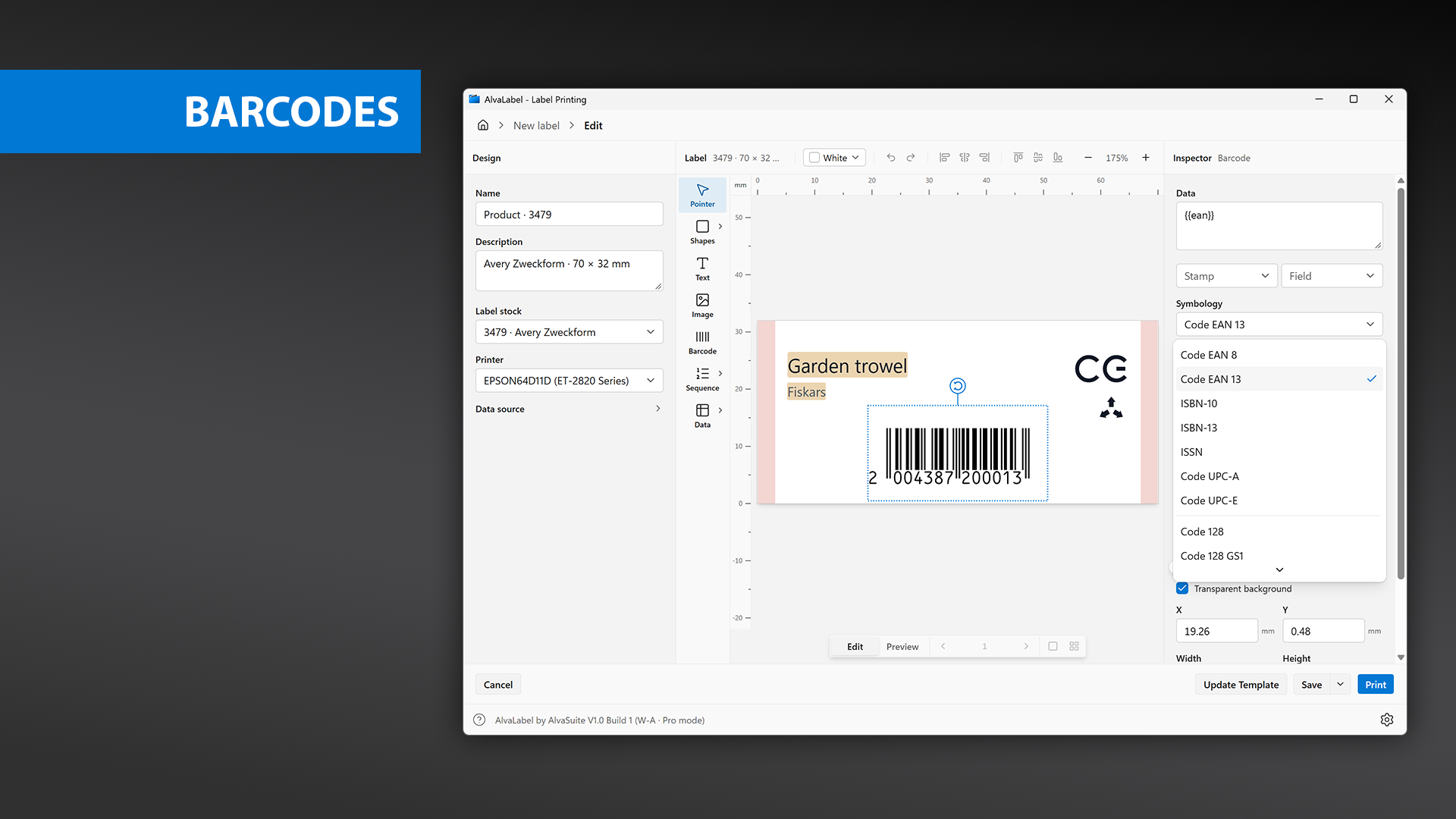
A barcode bound to the {{ean}} field, with the symbology list open. Retail, linear, and 2D types are separated in the menu.
The Symbology list is grouped into retail, linear, and 2D. Only Code 39 is available in Community; the others carry a Pro pill and their Data field is locked until the license is active.
- Retail — Code EAN 8, Code EAN 13, ISBN-10, ISBN-13, ISSN, Code UPC-A, Code UPC-E
- Linear — Code 128, Code 128 GS1, Interleaved 2 of 5, Industrial 2 of 5, ITF-14, Code 39, PZN, Laetus, Codabar
- 2D — Data Matrix, Data Matrix GS1, PDF417, QR Code, Aztec
Which sizing controls appear depends on the family:
| Family | Controls |
|---|---|
| Retail | SC size (SC0 to SC9, the GS1 magnification factors) and Height as a percentage of the standard height; Show light margin indicator adds the > that marks the quiet zone |
| Linear | Module height 5–50 mm and Module width 0.1–1.2 mm |
| 2D | Module size 0.2–5 mm, square |
Linear and retail codes also have Show human readable and, for non-retail types, a Font size for that line; retail codes size it automatically and show Auto. All types share Margin (the quiet zone, 0–20 mm), Bar width reduction (0–30%, to compensate for ink spread — ask your print shop, but laser and offset are typically 1–2% and thermal 0%), and Transparent background, which is on by default so the label’s paper colour shows through.
For GS1 application identifiers, write them in parentheses — (01)1234567890 — and AlvaLabel inserts the required FNC1 characters. The full list is in the GS1 application identifiers table. Retail check digits are always recalculated, so a mistyped one cannot reach the printer.
Sequential numbers and data fields
The Sequence tool and the Data tool do not create a new kind of object. They place a text or barcode object — whichever you choose in the submenu — that is pre-filled with the right token. Everything in the two sections above still applies; the only difference is what is in the Text or Data field.
The Data submenu lists the columns of the current data source, so picking ean and barcode gives you a barcode whose data is {{ean}}.
Stamps and fields
Anywhere you can type text — a text object, a barcode’s Data field — you can write a {{token}} that is replaced when the label is drawn. The Stamp and Field dropdowns in the inspector insert them for you: click an entry to insert at the cursor, Shift-click to replace the whole field.
Stamps come from the machine and the moment of printing:
| Token | Value |
|---|---|
{{date}} | Current date, YYYY-MM-DD |
{{time}} | Current time, HH:MM |
{{datetime}} | Both, separated by a space |
{{name}} | The design’s Name |
{{username}} | Signed-in user name |
{{computer}} | Computer name |
Fields come from the sequence generator and the data source:
| Token | Value |
|---|---|
{{sequence}} | Prefix, zero-padded counter, and suffix |
{{sequence_counter}} | The padded counter on its own |
| one per column | The value of that column in the current row — {{sku}}, {{price}}, {{ean}}, and so on |
Column names win over stamp names, so a catalog column called date shadows the date stamp. Token names are case-insensitive, and a token that matches nothing is left on the label as literal text — a quick way to spot a typo.
On the canvas the tokens stay visible while you edit, then resolve to real values as soon as you switch to Preview.
Data sources
Most labels come from a list. The Data source section in the design panel decides where that list comes from:
- None — a single static label
- Sample data — 50 gardening products that ship with the app, useful for trying a layout before your own file is ready. Columns:
sku,name,manufacturer,stock,ean,price. - Load… — opens a file picker for CSV, TXT, TSV, and Excel workbooks. Once loaded, the file name itself becomes the entry in the dropdown.
The hint under the dropdown confirms what is loaded — 50 gardening products. Column names become field tokens. or 50 rows from catalog.xlsx.
Importing a file
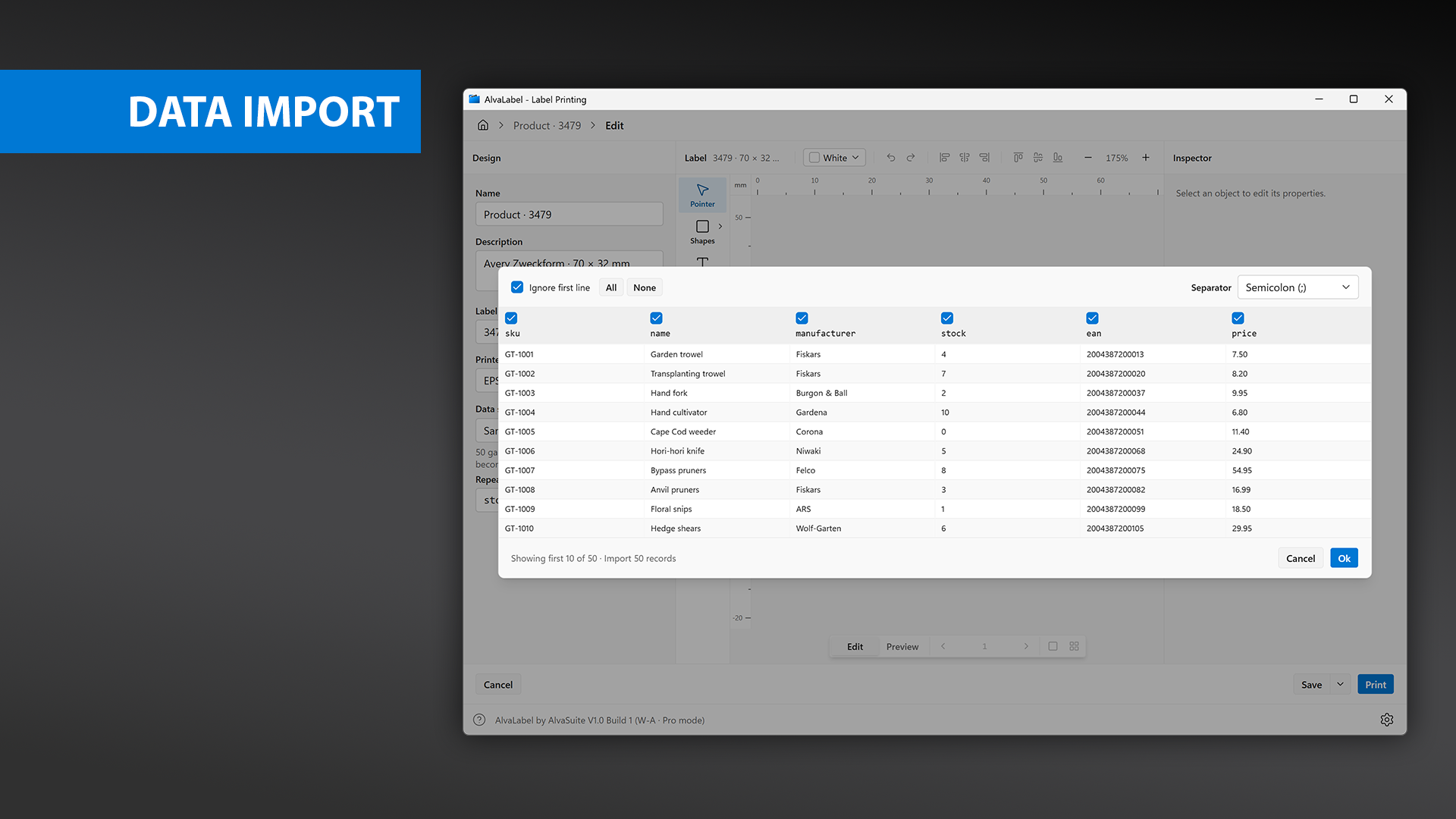
CSV import: the separator is detected, the header row is recognised and skipped, and each column can be included or left out.
The import dialog previews the first 10 records so you can confirm the parse before committing:
- Separator — Comma (,), Semicolon (;), Tab, or Pipe (|). AlvaLabel counts the candidates in the first line and picks the most frequent; change it here if the preview looks wrong. Excel files have no separator, and show a Sheet dropdown instead when the workbook has more than one sheet.
- Ignore first line — ticked automatically when the first row looks like a header, either because it contains words such as
sku,name,price, orean, or because most of its cells look like identifiers. When it is ticked, that row supplies the column names; when it is not, columns are namedcolumn_1,column_2, and so on. - Column checkboxes — a tick in each header decides whether that column is imported. All and None set them in one go.
Column names are normalised into token-safe identifiers: lower-cased, with runs of anything other than a letter, digit, or underscore replaced by a single underscore, and duplicates suffixed _2, _3. A column headed Unit Price (€) becomes unit_price, which you then use as {{unit_price}}. Check the header row in the import preview so you know what to type.
Quoted fields, embedded separators, and doubled quotes inside quotes are handled, and a UTF-8 byte-order mark is stripped. Rows where every selected column is empty are skipped. For Excel, cell values are read as they are displayed — dates come across as YYYY-MM-DD and numbers keep their formatted decimals — but formulas are not evaluated, so save the workbook with values if it is calculated.
Repeat
Repeat decides how many labels each row produces. Leave it at 1 for one label per row, pick a fixed number up to 1000, or — more usefully — pick a column. Only columns whose every value is a whole number from 0 to 1000 are offered. With the sample data’s stock column selected, a row with 4 in stock prints four labels and a row with 0 prints none. That is how the print screen arrives at 247 labels from 50 records (repeat from stock).
Sequential numbers
Serial numbers, ticket numbers, and asset tags come from the sequence generator. The Sequential numbers section appears in the design panel as soon as anything on the label uses {{sequence}} or {{sequence_counter}}. All objects using those tokens share one series, so a serial printed both as text and as a barcode always agrees with itself.
| Field | Meaning |
|---|---|
| Prefix / Suffix | Static text around the number |
| Digits | Width of the counter, 3–12; shorter values are padded with zeros |
| Number | The next number to assign, up to 99,999,999 |
| Step | Added after each repeat group. 1 gives 1, 2, 3…; 10 gives 1, 11, 21… |
| Repeat | How many labels keep the same number before stepping. 2 prints each number twice. |
| Continue numbering from the last run | Start the next print run where the previous one stopped |
Continue numbering is what makes serials survive across sessions. After every successful print run AlvaLabel records the first unused number; with the box ticked, the next run picks up from there instead of restarting at the beginning. Leave it unticked and each run starts from the same Number — right for a fixed batch, wrong for serials you must not duplicate.
Note that the sequence’s Repeat and the data source’s Repeat are different things: the sequence one repeats a number across consecutive labels, the data one repeats a row.
Preview and the safe area
The bar under the canvas switches between Edit and Preview. In Preview the editing chrome disappears, tokens resolve to real values, and the arrows step through the run:
- One label shows a single label at a time — step through the merged rows to check that long product names and wide barcodes still fit.
- Full sheet shows the whole sheet at its real grid, with page navigation underneath.
Preview is read-only; switch back to Edit to change anything.
Safe area
If the selected printer cannot reach the edges of the labels on this stock, the designer shades the unreachable strip red directly on the label. Hovering it explains: Printer margins would cut off this part of the label. Keep text and barcodes out of that band. The overlay is shown in Edit mode on the single-label view, and follows whichever printer is selected in the design panel — switching to a printer with narrower margins makes it shrink or disappear.
Saving and leaving the designer
The buttons along the bottom:
- Cancel — leave without saving. The breadcrumb home does the same.
- Save — save and return home. A name is required.
- Save as new template — from the chevron next to Save, adds the design to the Templates gallery (Pro).
- Update Template — appears only when you opened a built-in template, and writes your changes back to it.
- Print — go to the print screen. With Auto-save before printing on (the default), the label is saved first.
Printing
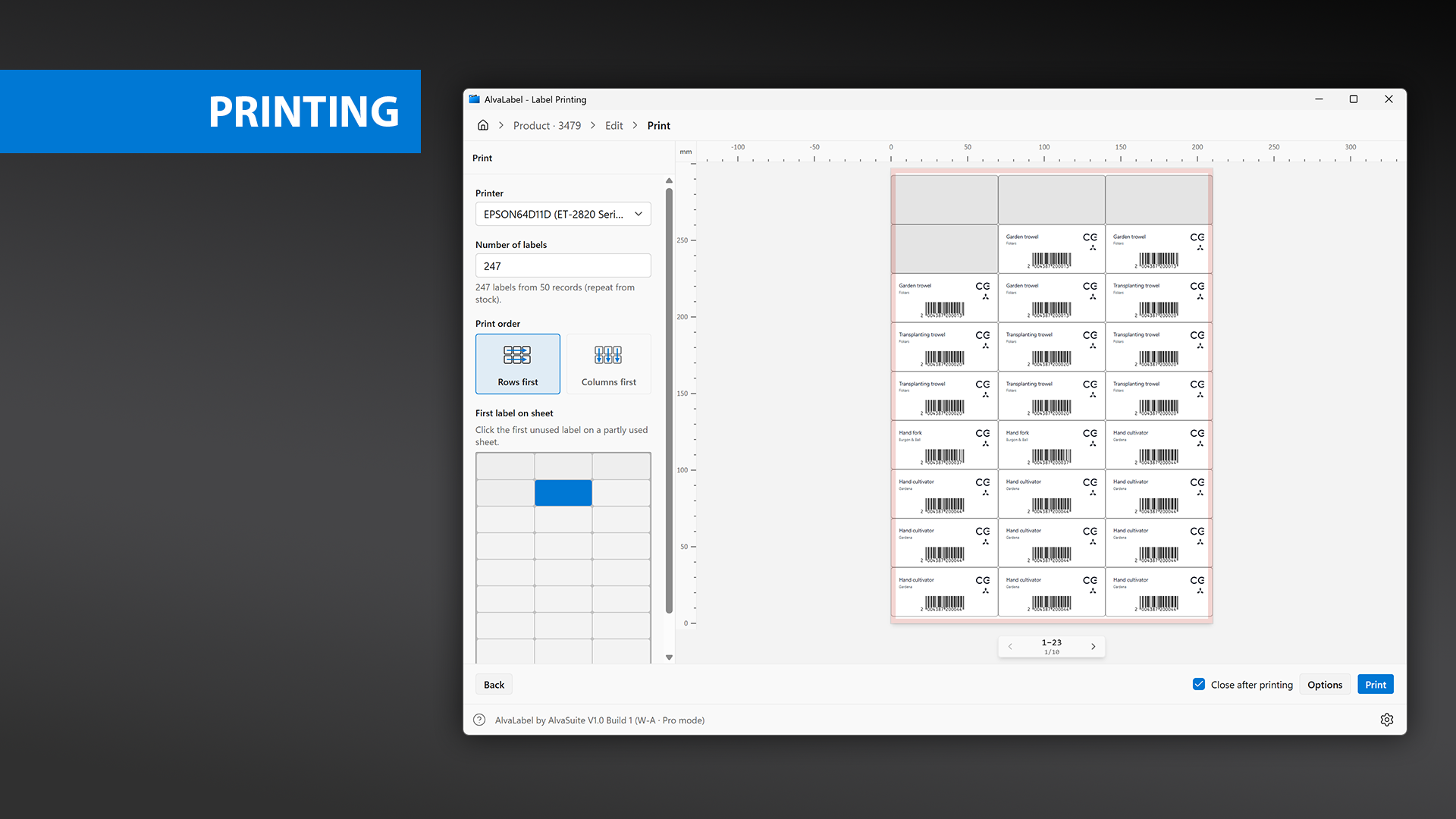
Print: 247 labels inferred from the catalog, rows-first fill, three spent labels skipped on the first sheet, and the sheet preview on the right.
The print screen is a full-sheet job. The left panel, top to bottom:
Printer. The design’s printer is pre-selected.
Number of labels. Up to 10,000. With a data source loaded, the field is pre-filled with the number the data implies and the caption below shows the arithmetic — 247 labels from 50 records (repeat from stock). Type over it if you want a different number; an Accept link appears to restore the calculated value.
Print order. Rows first fills left to right and then down; Columns first fills top to bottom and then across. Match this to how you want the sheet to read after it comes out.
First label on sheet. Half-used sheets are the normal case with label stock. Click the first cell that still has a label on it, and the run skips the spent ones on the first sheet only. The preview greys those cells out.
The preview on the right is the real sheet: real grid, real data, real barcodes, with the printer margin overlay and page navigation underneath. Pages are rendered at 600 dpi.
On Windows, Print sends the job straight to the printer’s spooler — there is no second system print dialog. Options opens the printer driver’s own preferences (paper source, media type, quality) for the selected printer.
On Mac there is no Options button: Print opens the standard macOS print dialog, where you set quality, paper, and Save as PDF.
Close after printing returns you to the home screen when the job is away.
If the design contains a Pro barcode and Pro is not active, the bar reads This label uses a Pro barcode. and Print is disabled.
Settings
The gear at the right end of the status bar opens Settings. On Mac the same dialog is Preferences, also available from AlvaLabel → Preferences… or ⌘,.
- Label brands — Avery, Avery Zweckform, HERMA, TownStix. Only the ticked brands appear under New label and in the template gallery. The initial selection depends on your language, since the brands differ by market.
- Measurement units — Millimetres (mm) or Inches (in), used for the rulers and every length in the inspector. English defaults to inches, the other languages to millimetres.
- Auto-save before printing — on by default; saves the label when you go from the designer to the print screen.
- Language — System, English, Deutsch, Français, or Español. Changing it reloads the app.
Right-click the gear for Reset all settings, which restores the defaults above without touching your saved labels or templates. On Mac that menu also includes Restore Purchases.
Dark mode
AlvaLabel follows the system colour scheme. There is no separate in-app theme switch — if Windows or macOS is in dark mode, the app is too.
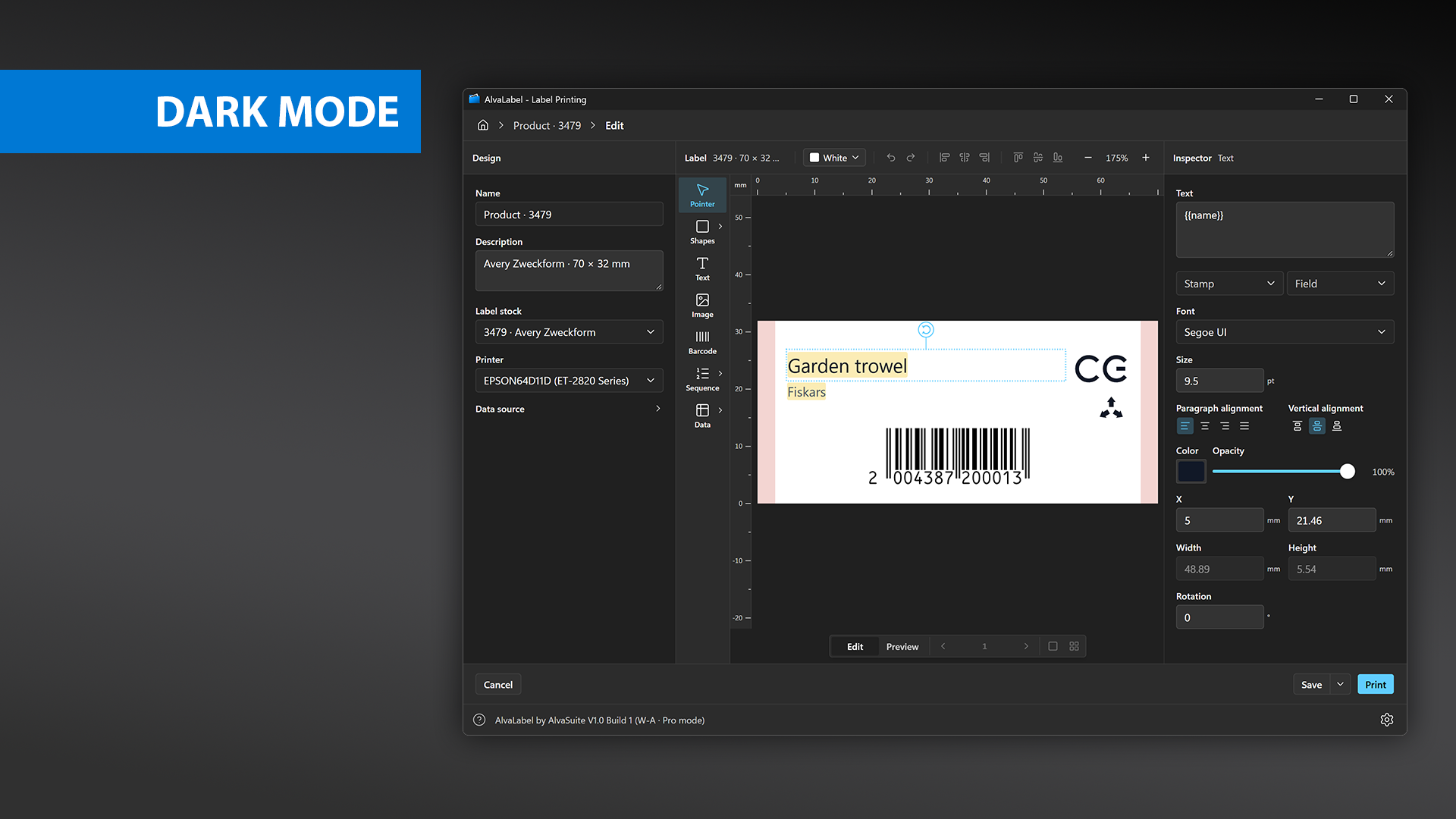
Dark mode tracks the system setting.
The label on the canvas keeps its own paper colour in either theme, so a contrast judgement made on a dark screen still holds on paper.
Sharing a design
Export… in the Recents actions menu writes the design to an .alvalabel file (Pro). The file is JSON and contains the complete design: objects, fonts, sizes, the stock it was made for, the sequence settings, and any embedded images. Images that were linked rather than embedded are referenced by their path, so keep those under 100 KiB if the design has to open on another machine.