AlvaBars Manual

Create standards-compliant barcodes in bulk from a table, a CSV file, the clipboard, or a sequential number generator.
AlvaBars bulk-creates barcodes for retail, warehousing, logistics, pharma, publishing, and transport. Import tabular data, paste from a spreadsheet, or use the built-in generator for serialized codes. A live preview updates as you change data or settings, and export is print-ready (PDF, CMYK TIFF) or web-ready (PNG, SVG). The codes can be used for InDesign data merge, in Canva bulk create combined with the LabelSheets app or in user-provided software and applications, e.g. for mass mailings.
Barcode creation uses a proprietary library written in Rust. On a typical PC or laptop (i7 or equivalent) the app creates about 10,000 PDF barcodes in two to three seconds. Automatic data formatting, check-digit calculation, and built-in safeguards keep invalid symbols from being written. The created files have no external dependencies — no barcode fonts, no online access required.
This manual walks through installation, Community vs Pro, the main window, data sources, export, the data requirements for each barcode type, and the command line. If something is unclear, contact us.
System requirements
Windows 10, or Windows 11 (recommended). English, Deutsch, Français, and Español are included; the UI follows the system language unless you pick one in Settings.
Installation
Install AlvaBars from the Microsoft Store. After the Store finishes, launch the app from the Start menu or from the Store listing. Updates are delivered by the Store.
Community vs Pro
After install, AlvaBars runs as the free Community version. Community can use every symbology; export is limited to PNG at 150 dpi.
Pro unlocks high-resolution raster export (PNG and CMYK TIFF up to 2400 dpi), vector export (SVG and PDF), and batch processing from the command line and PowerShell. Pro is a one-time purchase — not a subscription — and includes email support. Click Get Pro in the toolbar and follow the Store purchase flow. The status bar shows Pro mode once the license is active.
On first launch in Community, a notice explains the export limit. Dismiss it with Got it; you can unlock later at any time.
Main window
On first launch AlvaBars opens with EAN 13, sample catalog rows (a short gardening list), SC size SC2 (1.0), human-readable text on, a margin of 8 mm, and bar-width reduction at 0%. Community defaults to PNG at 150 dpi; with Pro unlocked you can choose any export format, including PDF (print ready).
You can turn sample data off under Settings → Open with sample data. That preference applies the next time the app starts.
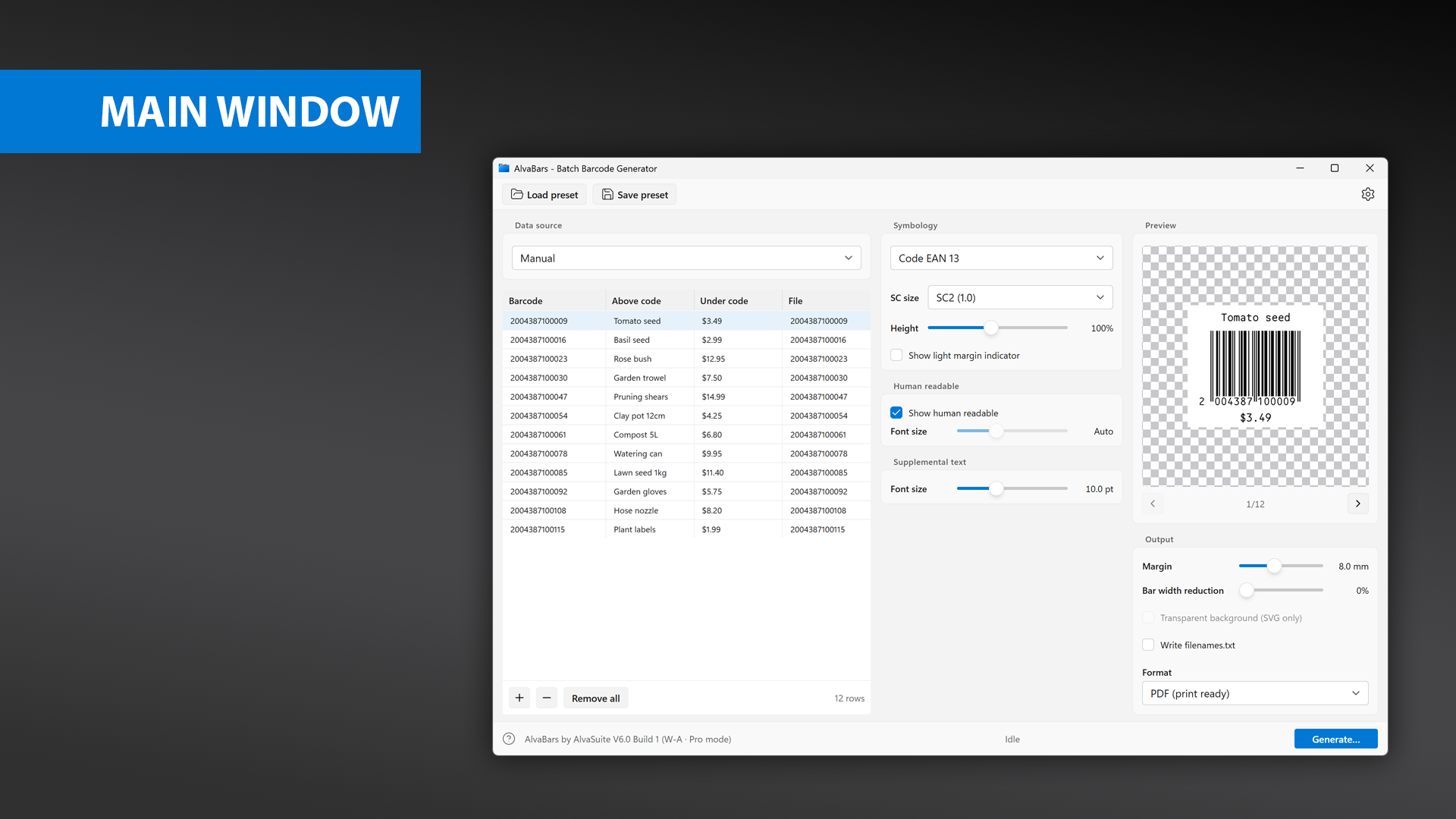
Main window with Pro unlocked: data table on the left, symbology and text settings in the center, live preview and output on the right.
The window is three columns:
- Data source — choose Manual, Import from CSV/TXT, Import from clipboard, or Sequential numbers. The table has four columns: Barcode, Above code, Under code, and File. Use + / − to add or remove rows, and Remove all to clear the batch.
- Symbology — pick the barcode type and the size, human-readable, and supplemental-text options that apply to it. Controls that do not apply to the current type are disabled. Retail codes (EAN, ISBN, ISSN, UPC) size the human-readable line automatically, so the font-size slider stays on Auto.
- Preview and output — the SVG preview follows the selected row. Step through the batch with the arrows under the preview. Below that: margin, bar-width reduction, transparent background (SVG only), Write filenames.txt, the export format, and Generate….
The toolbar has Load preset and Save preset for symbology and output settings, and a gear for Settings (language, sample data, and advanced options for Code 39, Code 2/5, and ITF-14). The ? control in the status bar opens this manual.
Creating barcodes is four steps:
- Choose the barcode type.
- Provide the data to encode.
- Choose the export format and options.
- Generate and save the files.
If a row cannot be encoded as the selected type, the preview shows an error and points here for the data rules.
Export formats
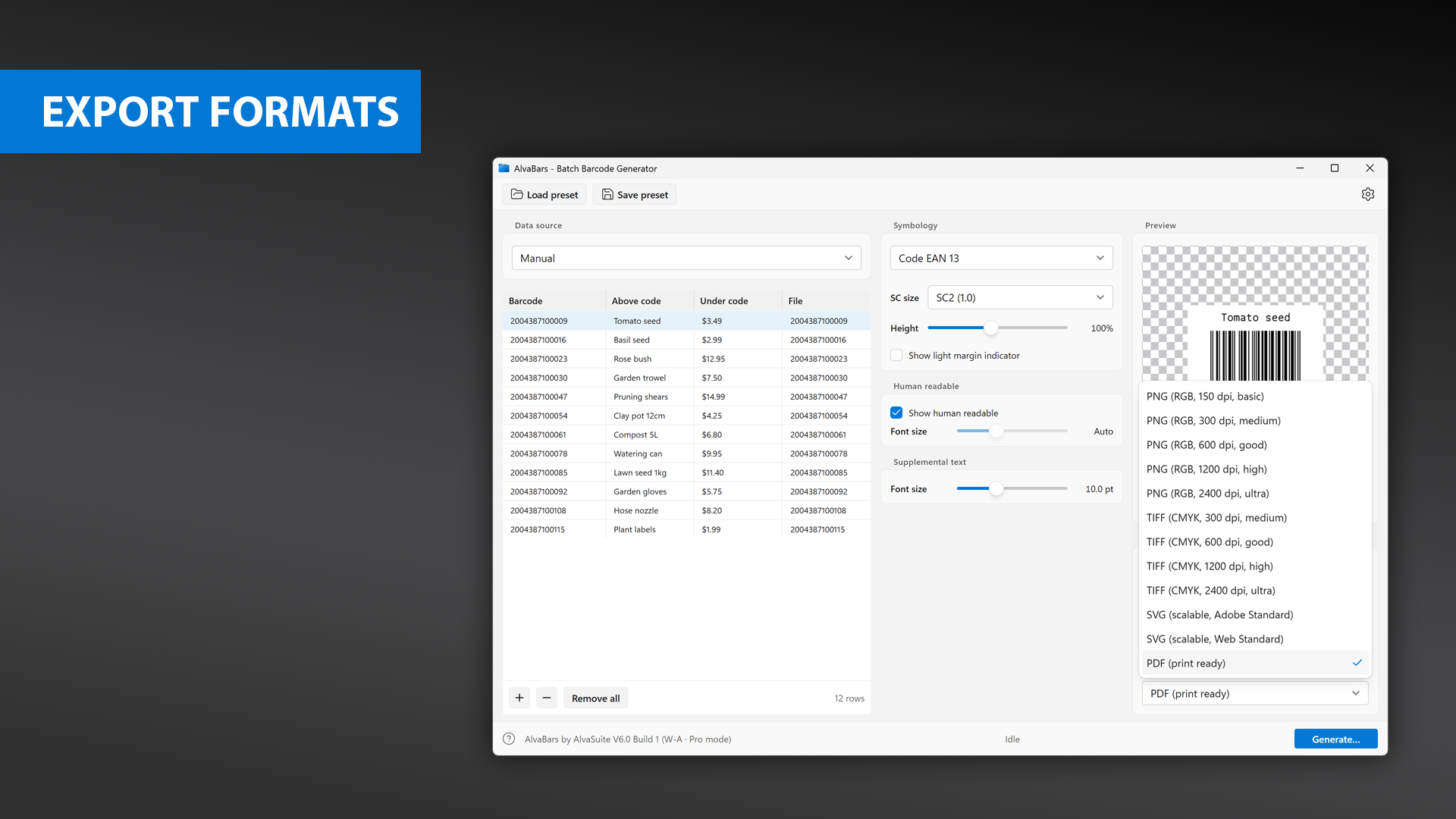
Export formats available in Pro: PNG (RGB), TIFF (CMYK), SVG, and PDF.
Choose the format from the list on the right:
- PNG (RGB), 150 dpi (Community) through 2400 dpi (Pro)
- TIFF (CMYK), 300 dpi through 2400 dpi (Pro)
- SVG, Adobe Standard (72 units per inch) or Web Standard (96 units per inch) (Pro)
- PDF, print ready (Pro)
Prefer vector (PDF or SVG) when you can. Those files are resolution-independent, generate much faster than raster, and stay small — a PDF is typically a few kilobytes, while a 2400 dpi TIFF of the same code can be several megabytes. Raster time and file size grow with dpi; try a small batch first if you need 1200 or 2400 dpi PNG or TIFF.
Barcodes are written in pure black (PNG/SVG: RGB 0, 0, 0; TIFF: C0 M0 Y0 K100; PDF: K100). Place them on a light background. Non-black bars are not recommended.
If you use SVG in Adobe Illustrator, InDesign, or Photoshop, place the file into the document rather than opening it directly. That keeps the vector quality.
Output options
- Margin — space around the symbol, useful when you add supplemental text.
- Bar width reduction — compensates for ink spread in print. Ask your print shop. Typical starting points: offset or laser 1–2%; thermal 0%; inkjet on plain paper about 5%, on inkjet paper 1–2%; pad printing up to 10%.
- Transparent background (SVG only) — omits the white rectangle behind the code. Place the SVG on a light background (white, grey, yellow, pink, light blue, and similar) and test scanning before production.
- Write filenames.txt — writes a text list of the generated files into the output folder, for data merge in InDesign and similar tools. By default the file starts with a header line
@Barcodeso InDesign Data Merge treats the paths as images (see Settings). - Show light margin indicator — a
>next to retail codes (EAN 13, ISBN, ISSN) that marks the quiet zone which must stay free of other artwork. - Show human readable — the interpretation line under linear codes. ISBN/ISSN also omit the ISBN/ISSN line above the symbol when this is off. 2D codes never show a human-readable line; the payload is too long. You can still set Above code / Under code for those types.
- Human readable text size — for non-retail linear codes. Retail font size is calculated automatically.
- Supplemental text size — font size of the above/under lines.
Click Generate… and pick an output folder. Progress is shown in the status bar.
Import CSV or TXT
Select Import from CSV/TXT in Data source. Pick a .csv, .txt, or .tsv file. The import dialog previews the first 10 records so you can check the separator and header.
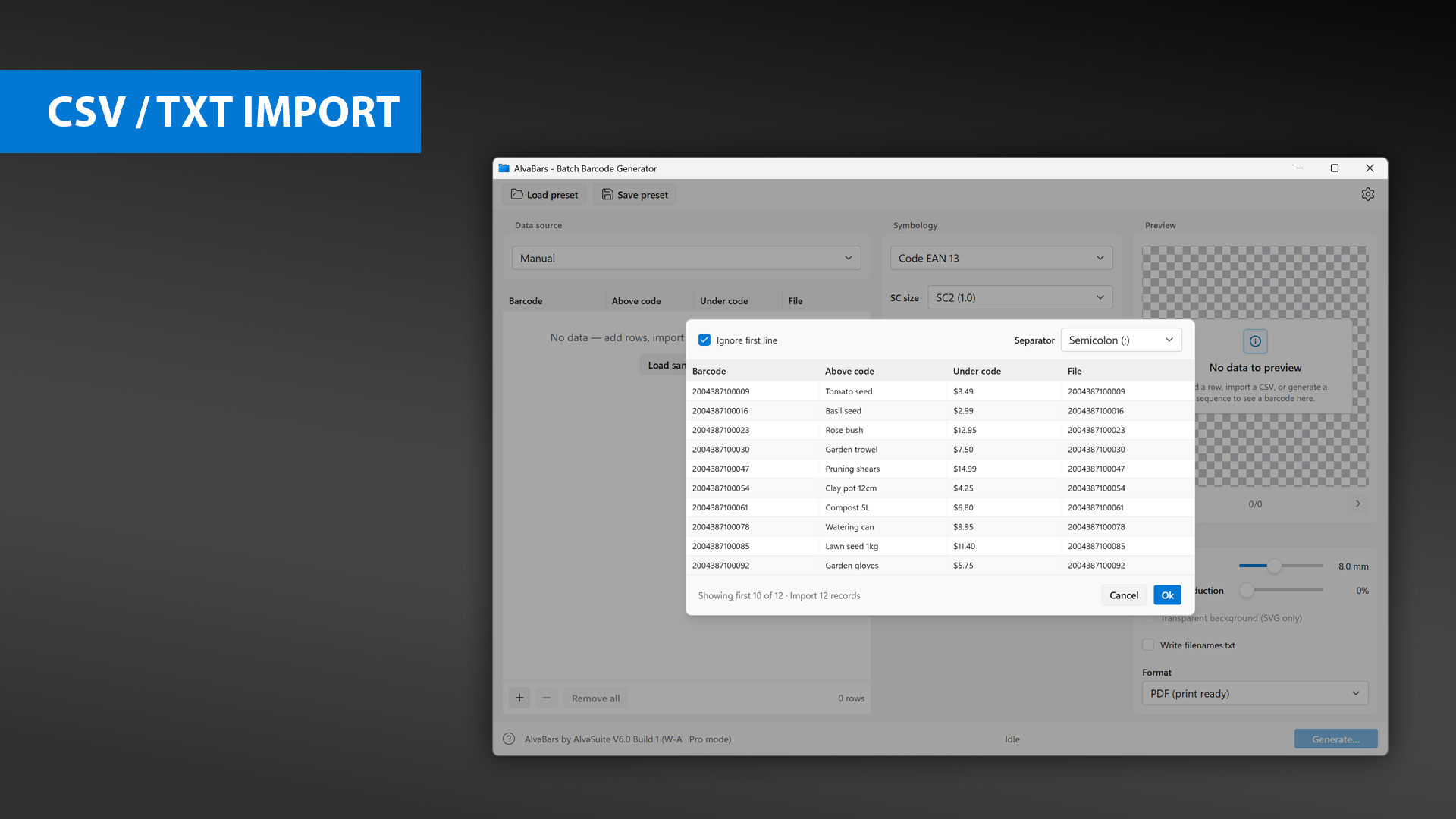
CSV / TXT import: ignore the header row, pick the separator, then confirm the mapped columns.
Columns are always, in order:
- Barcode — required. Empty barcode cells are skipped.
- Above code — optional text above the symbol.
- Under code — optional text under the symbol.
- File — output filename without extension. If this cell is empty, the filename is taken from the barcode value (sanitized for Windows). A trailing
.png,.pdf,.svg, or.tiffin the file column is stripped.
Separators: comma, semicolon, tab, or pipe. AlvaBars guesses from the first line; change it if the preview looks wrong. Tick Ignore first line when the file has a header. If the first line looks like a header (barcode, ean, file, and similar), that box is ticked for you.
Example matching the sample catalog (semicolon-separated, no header):
2004387100009;Tomato seed;$3.49;2004387100009
2004387100016;Basil seed;$2.99;2004387100016
2004387100023;Rose bush;$12.95;2004387100023
Click Ok to load the rows into the table. You can still edit cells afterwards.
Clipboard
Import from clipboard is the shortcut from Excel or another spreadsheet. Copy the cells, then choose that data source. The same four-column layout applies; the separator defaults to tab. Only text can be pasted — if the clipboard holds an image, you get a warning.
Manual entry
Set Data source to Manual. Click + to add a row, double-click a cell to edit, − to delete the selected row, and Remove all to start over.
Sequential numbers
Typical uses are serialised product codes and venue tickets. Choose Sequential numbers in Data source.
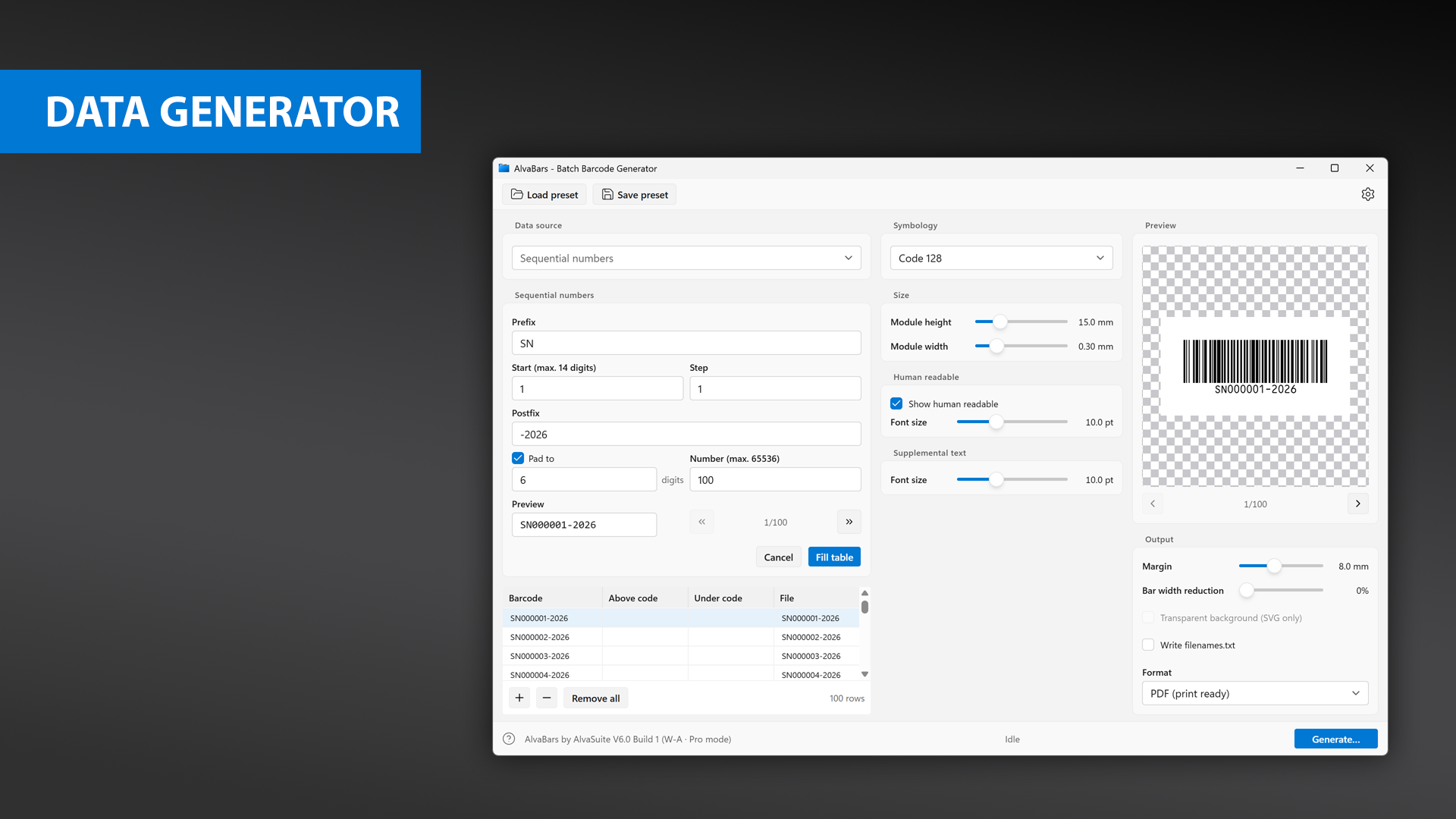
Sequential generator: prefix, start, step, postfix, optional zero-padding, then Fill table.
Set:
- Prefix and Postfix — static text around the number
- Start — first value, up to 14 digits
- Step — difference between successive numbers
- Pad to — optional left-padding with zeroes
- Number — how many codes to create, up to 65,536
The preview field shows the current value (for example SN000001-2026). Click Fill table to write the sequence into the Barcode and File columns. Edit any cell afterwards.
For longer numbers or mixed alphanumeric sequences, build the list in a spreadsheet and import it.
Dark mode
AlvaBars follows the Windows colour scheme. There is no separate in-app theme switch — if Windows is in dark mode, the app is too.
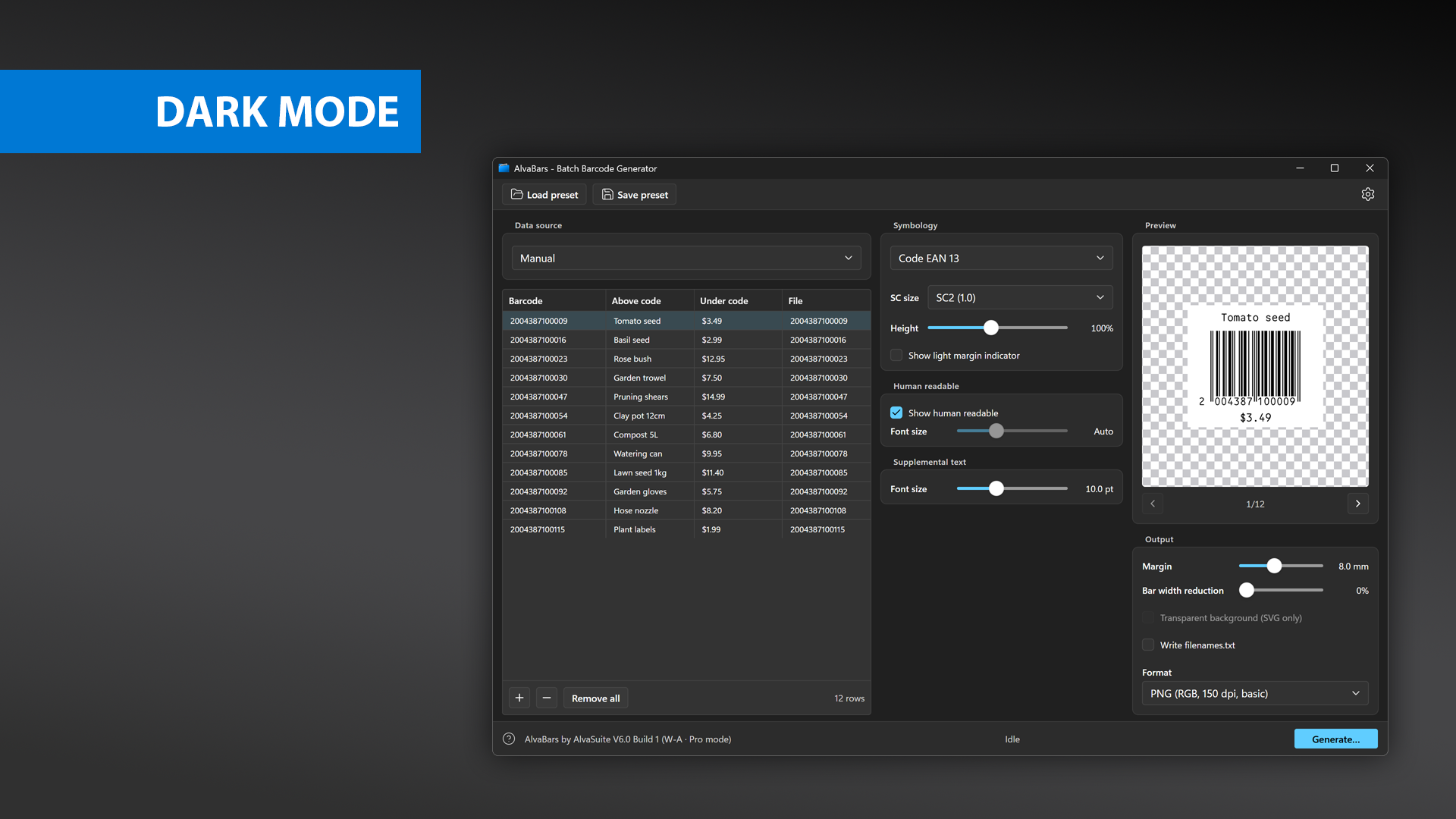
Dark mode tracks the system setting. Generated barcodes stay black on white (or transparent, for SVG).
The preview of the barcode itself remains a light label, so contrast and scanability do not depend on the UI theme.
Barcode types
AlvaBars supports the usual retail, linear, and 2D symbologies. EAN 13 is also sold under other names (JAN, EAN 99, EAN Velocity, and similar); those are ordinary EAN 13.
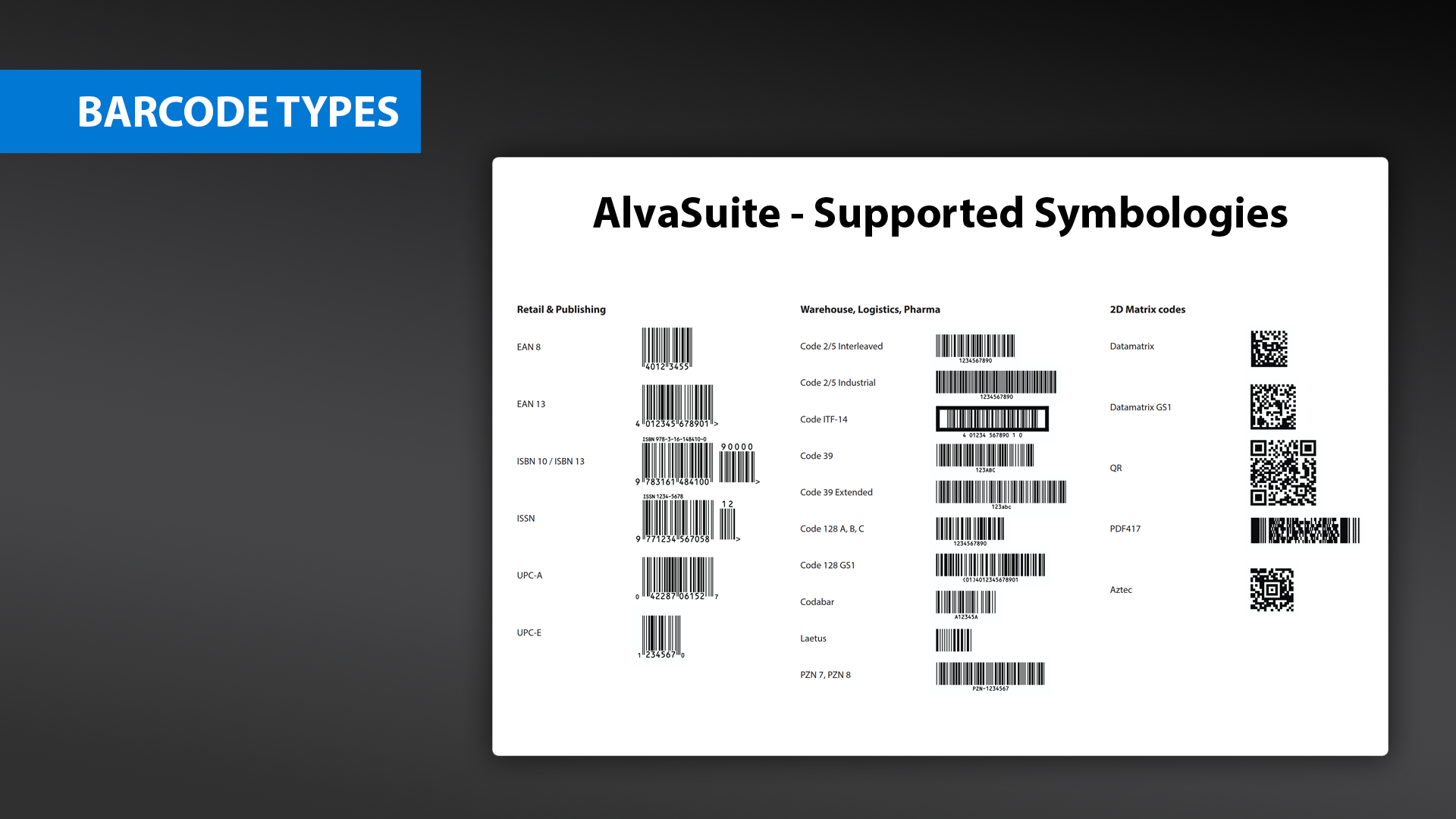
Retail and publishing, warehouse / logistics / pharma, and 2D matrix codes.
If the data in a row does not match the selected type, the preview reports an error. Settings that do not apply to that type are disabled.
With retail barcodes the check digit is always recalculated. For EAN 13 it does not matter whether you enter 12 or 13 digits: 12 digits get a check digit appended; 13 digits have the last digit replaced. That is intentional, so a mistyped check digit cannot ship.
EAN 8
- Data: 7 or 8 digits
- Settings: SC size, height
- No add-on
EAN 13
- Data: 12 or 13 digits
- Settings: SC size, height, light margin indicator
- Also known as JAN, EAN 99, EAN Velocity, and similar
ISBN 10
- Data: ISBN-10 number, for example
1-123-12345-X - Settings: SC size, height, light margin indicator
ISBN 13
- Data: ISBN-13 number, for example
978-1-123-12345-6 - Settings: SC size, height, light margin indicator
- Must begin with
978or979
ISSN
- Data: ISSN, for example
1234-5678 - Settings: SC size, height, light margin indicator
- To set a variant number, append two digits separated by a semicolon, for example
1234-5678;05. If you omit the variant,00is used.
UPC-A
- Data: 11 or 12 digits
- Settings: SC size, height
UPC-E
- Data: 7 or 8 digits; must begin with
0or1 - Settings: SC size, height
- No add-on
Code 128
- Data: digits, letters, and ASCII, up to 64 characters
- Settings: module width, module height
- Subset A, B, or C is selected automatically. A check digit is always included.
Code 128 GS1
- Data: digits, letters, and parenthesized application identifiers, up to 64 characters, for example
(01)1234567890. See the GS1 application identifiers table. - Settings: module width, module height
- Subset A, B, or C is selected automatically. A check digit is always included. Required FNC1 symbols are inserted for you.
Code 2/5 Interleaved
- Data: digits 0–9, up to 64 digits
- Settings: module width, module height; ratio and check digit in Settings (see Settings)
Code 2/5 Industrial
- Data: digits 0–9, up to 64 digits
- Settings: module width, module height; ratio and check digit in Settings
ITF-14
- Data: 13 or 14 digits (spaces allowed). Supply a complete 14-digit GTIN including the check digit, or 13 digits and AlvaBars will append the GTIN check digit.
- Settings: module width, module height; ratio and bearer-bar style in Settings
- Recommended: module width at least 1 mm, height at least 25 mm, ratio 2.5
Code 39 / Code 39 Extended
- Data: digits and letters, up to 64 characters
- Settings: module width, module height; ratio and check digit in Settings
- Code 39 vs Code 39 Extended is selected automatically from the data. The Code 39 check digit may be a letter.
PZN 7/8
- Data: 7 or 8 digits. AlvaBars assembles the PZN symbol.
- Settings: module width, module height
- Recommended: module width 0.25 mm, height 8–20 mm, ratio 2.5
Laetus
- Data: digits 0–9, maximum value 131070
- Settings: module width, module height
Codabar
- Data: digits 0–9, up to 64 digits, including start and stop symbols in the data, for example
A123456A. Start/stop may beA,B,C, orD. - Settings: module width, module height
Data Matrix
- Data: up to 2000 characters, extended ASCII
- Settings: module size (square; width equals height)
Data Matrix GS1
- Data: up to 2000 characters, extended ASCII, including application identifiers, for example
(01)1234567890. See the GS1 application identifiers table. - Settings: module size (square)
- Required FNC1 symbols are inserted for you.
PDF417
- Data: up to 2000 characters, extended ASCII
- Settings: module size
- Module ratio height : width is 3 : 1
QR Code
- Data: up to 2000 characters, Unicode
- Settings: module size (square)
Aztec
- Data: up to 2000 characters, extended ASCII
- Settings: module size (square)
Settings
Click the gear in the toolbar to open Settings. Besides language and sample data, the dialog holds options for Code 39, Code 2/5, and ITF-14.
- Open with sample data — load the gardening catalog on startup. Applies the next time AlvaBars starts.
- InDesign @ header in filenames.txt — when Write filenames.txt is on, the list begins with
@Barcode. InDesign Data Merge uses an@prefix on the field name to mark an image-path column; later rows are the actual paths. On by default. Turn it off if you only need a bare list of names.
Right-click the gear for Reset all settings. That restores symbology, size, export, and the Settings dialog to their defaults. The data table is left as it is.
Code 39 / Code 39 Extended and Code 2/5 Interleaved / Industrial:
- Ratio — width of a wide bar relative to a narrow bar. Range 2.0–3.0, default 2.5. Lower values make a smaller code and raise the chance of misreads.
- Check digit calculation — appends a check digit. Default: off.
- Check digit display — shows that digit in the human-readable line. Only available when calculation is on.
ITF-14:
- Ratio — same 2.0–3.0 range, default 2.5. ITF-14 is always created with a check digit, and that digit is always shown with the data.
- Style — no frame, top and bottom bearer bars, or an all-around frame. The frame thickness is 4.83 mm (0.190"), as in the GS1 specification. Default: top and bottom bars.
Presets (Load preset / Save preset) store symbology, size, and export choices so a recurring job can be restored in one step. A saved .alvabars file is also the JSON settings document used on the command line (add csv.delimiter if you will run headless).
Command line
Headless generation is a Pro feature. After a Store install, AlvaBars.exe is on your PATH via an app execution alias.
AlvaBars --generate "C:\jobs\ean13.alvabars" --csv "C:\jobs\catalog.csv" -o "C:\out"
| Option | Meaning |
|---|---|
--generate, --headless | Run without the UI |
-s, --settings <file> | JSON settings (.json or .alvabars) |
-c, --csv <file> | CSV/TXT data |
-o, --output <folder> | Output folder (required) |
-d, --debug | Extra diagnostics |
-h, --help | Show help |
-V, --version | Show version |
The settings file holds barcode options, export format, and the CSV delimiter. The rows themselves are not in JSON — pass them with --csv. Columns are the same as in the app: barcode, above code, under code, file.
{
  "version": 1,
  "settings": {
    "symbology": "ean13",
    "scSize": 2,
    "height": 1.0,
    "showLmi": false,
    "moduleHeight": 15.0,
    "moduleWidth": 0.5,
    "showHr": true,
    "hrSize": 10.0,
    "suppSize": 10.0,
    "margin": 8.0,
    "reduction": 0.0
  },
  "prefs": {
    "c39": { "ratio": 2.5, "checkCalc": false, "checkDisp": false },
    "c25": { "ratio": 2.5, "checkCalc": false, "checkDisp": false },
    "itf14": { "ratio": 2.5, "style": 1 }
  },
  "export": {
    "format": "png-300",
    "writeFilenames": true,
    "transparent": false,
    "filenamesHeader": true
  },
  "csv": {
    "delimiter": ";",
    "ignoreFirstLine": false
  }
}
csv.delimiter may be ;, ,, tab ("\t" or tab), or | (or the words semicolon, comma, tab, pipe). export.format uses the same ids as the app: png-150 through png-2400, tiff-300 through tiff-2400, svg-adobe, svg-web, pdf.
Save preset in the app writes this JSON (with csv.delimiter defaulting to semicolon). You can edit the file and reuse it from cmd or PowerShell.